DOM Events
🎛️ Running the Control Booth
Great stage managers coordinate lights, sound, and sets the moment the audience reacts. Web apps rely on that same choreography: every click, keypress, and swipe fires off a signal your code can capture, reroute, or silence.
- Which parts of your product feel sluggish or unpredictable when multiple events fire?
- When did a missing event handler break an otherwise solid feature for you?
- How do you currently trace the path of an interaction from the element clicked to the final side effects?
Learning how events travel, bubble, and trigger logic prepares you to design interfaces that respond instantly and reliably.
Learning Objectives
By the end of this lesson, you'll be able to:
- Explain Explain the lifecycle of DOM events across capturing, target, and bubbling phases
- Attach, remove, and delegate listeners for clicks, keyboard input, forms, and touch gestures
- Read the event object to access targets, modifiers, and default behaviors
- Throttle, debounce, or prevent events to protect performance and accessibility
- Troubleshoot propagation issues and conflicting listeners in complex layouts
Why This Matters:
Keep these goals in mind so every demo reinforces how events power real collaboration between users and your UI.
What Are Events?
Events are the foundation of interactivity on the web. They represent actions or occurrences that happen in your web page, such as a user clicking a button, typing in a text field, or resizing a window. Think of events as signals that something has happened, and event handlers as the code that responds to these signals.
Key Concepts:
- Event: An action or occurrence that happens in your web page
- Event Handler: A function that runs when an event occurs
- Event Listener: The mechanism that connects events to their handlers
- Event Object: Contains information about the event that occurred
// Basic event handling structure
element.addEventListener('eventName', function(event) {
    // This is the event handler
    // 'event' is the event object
    // Your code here
});
This basic structure shows how events work:
element:The DOM element you want to listen toaddEventListener:The method that connects events to handlers'eventName':The type of event to listen forfunction(event):The handler that runs when the event occurs
Why Are Events Important?
Events are important for creating interactive web applications because they:
- Enable user interaction with web pages
- Allow dynamic content updates without page reloads
- Make web applications feel responsive and engaging
- Enable real-time features like chat, notifications, and live updates
Common Event Categories:
- User Interface Events: Click, hover, scroll, resize
- Form Events: Submit, input, change, focus
- Keyboard Events: Key press, key down, key up
- Document Events: Load, unload, DOM content loaded
- Touch Events: Touch start, touch move, touch end
Event Flow in the DOM
When an event occurs, it follows a specific path through the DOM tree:
- The event starts at the target element (where the action occurred)
- It then bubbles up through parent elements (event bubbling)
- It can also be captured on the way down (event capturing)
- Event handlers can stop this flow using methods like
stopPropagation()
Your First Event Handler
Start with a simple example to see how events work in practice. We'll create a button that responds to clicks and updates some text on the page. This demonstrates the basic structure of event handling: selecting an element, adding an event listener, and responding to the event.
Click the button to see what happens!
// Adding a click event listener
const button = document.getElementById('clickMeBtn');
const result = document.getElementById('clickResult');

button.addEventListener('click', function() {
    result.textContent = 'Button clicked! 🎉';
    setTimeout(() => {
        result.textContent = 'Click the button to see what happens!';
    }, 2000);
});
This example shows the basic components of event handling:
- Select the element you want to interact with using
getElementById() - Add an event listener using
addEventListener() - Define what happens when the event occurs in the handler function
- Update the DOM to show the result of the interaction
Interactive Event Examples
Let's explore different types of events through an interactive demonstration. This example shows how various events work in practice, from mouse movements to keyboard input. Try interacting with the elements below to see how different events are triggered and handled.
Events will be shown here
Event Categories Overview
Common the most commonly used event categories in web development:
- Mouse Events: click, dblclick, mousedown, mouseup, mousemove, mouseenter, mouseleave
- Keyboard Events: keydown, keyup, keypress
- Form Events: submit, change, input, focus, blur
- Document Events: DOMContentLoaded, load, unload
- Touch Events: touchstart, touchmove, touchend
In the demo above, we're handling several types of events:
inputevent on the text field to show typingmousemoveevent to track mouse positionmouseenterandmouseleavefor hover effects
Event Propagation
Remember how we discussed event flow in the DOM earlier? Event propagation is the mechanism that makes this flow possible. When an event occurs, it doesn't just affect the element where it happened - it follows a specific path through the DOM tree.
Event Flow Phases:
- Capturing Phase: The event travels down from the root to the target element
- Target Phase: The event reaches the target element
- Bubbling Phase: The event bubbles up from the target back to the root
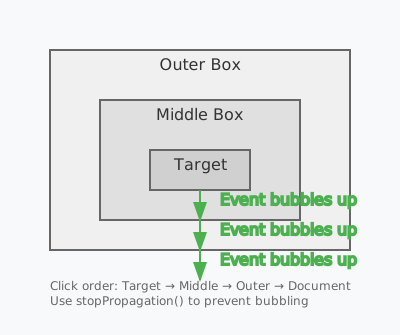
In this diagram:
- User clicks the innermost element (Target)
- Event bubbles up through each parent element
- Each parent's click handler is triggered in sequence
- Use
stopPropagation()to prevent further bubbling
By default, event listeners are registered in the bubbling phase. To register in the capturing phase:
element.addEventListener('click', handler, true); // Capturing phase
element.addEventListener('click', handler, false); // Bubbling phase (default)
// Event propagation example
const boxes = document.querySelectorAll('.propagation-box div');
boxes.forEach(box => {
  box.addEventListener('click', (e) => {
    // Stop propagation at any level
    // e.stopPropagation();
    console.log(`${box.className} clicked`);
  });
});
This code demonstrates event bubbling:
- We attach click listeners to all nested boxes
- When you click the inner box, events trigger in this order:
- inner-box clicked
- middle-box clicked
- outer-box clicked
- Uncomment
e.stopPropagation()to prevent bubbling
Common Use Cases for stopPropagation():
- Preventing form submission when clicking a cancel button
- Stopping click events from triggering parent handlers
- Controlling event flow in complex UI components
- Optimizing event handling in nested structures
Checkpoint: Own the Event Flow
Before moving forward, can you answer these?
- How would you describe the difference between event.target and event.currentTarget?
- Which interactions in this lesson would benefit from delegation instead of individual listeners?
- When should you call preventDefault versus stopPropagation, and what does each guarantee?
Tips to Remember:
- Console.log the target, currentTarget, and phase whenever debugging nested listeners.
- Annotate diagrams of the capturing and bubbling path for tricky components like modals.
- Wrap expensive handlers with throttle or debounce helpers before performance issues appear.
How confident are you with this concept?
Still confused | Getting there | Got it | Could explain it to a friend
Keyboard Events
Keyboard events are essential for handling user input and creating interactive experiences. They allow you to respond to key presses, combinations, and special keys. Understanding keyboard events is important for building forms, games, and keyboard shortcuts.
Keyboard Event Types:
- keydown: Fires when a key is first pressed down (before character is generated)
- keypress: Fires when a character is generated (after keydown)
- keyup: Fires when a key is released
Note: The order of events is: keydown → keypress → keyup
Keyboard Event Demo
Basic Key Events
Key Information
Last Key: -
Key Code: -
Modifier Keys: -
Special Keys Demo
Try these special keys:
- Arrow keys (↑, ↓, ←, →)
- Function keys (F1-F12)
- Enter, Space, Tab
- Escape, Backspace, Delete
Keyboard Shortcuts
Try these combinations:
- Ctrl + S (Save)
- Ctrl + C (Copy)
- Ctrl + V (Paste)
- Ctrl + Z (Undo)
Keyboard Event Properties
Each keyboard event provides useful properties to help you understand what happened:
key:The actual character or key name (e.g., "a", "Enter", "ArrowUp")keyCode:The numeric code for the key (deprecated, use code instead)code:The physical key on the keyboard (e.g., "KeyA", "Enter", "ArrowUp")ctrlKey, shiftKey, altKey, metaKey:Boolean values for modifier keysrepeat:Boolean indicating if the key is being held down
// Basic keyboard event handling
input.addEventListener('keydown', (e) => {
  // Prevent default behavior (e.g., form submission)
  if (e.key === 'Enter') {
    e.preventDefault();
  }

  // Check for modifier keys
  if (e.ctrlKey && e.key === 's') {
    e.preventDefault();
    console.log('Save shortcut pressed!');
  }

  // Handle special keys
  if (e.code.startsWith('Arrow')) {
    console.log('Arrow key pressed:', e.key);
  }
});
This code demonstrates common keyboard event patterns:
- Preventing default browser behavior
- Handling keyboard shortcuts
- Detecting special keys
- Using modern key properties
Best Practices for Keyboard Events:
- Use
keyfor character input,codefor physical keys - Always prevent default behavior when handling shortcuts
- Consider accessibility by supporting keyboard navigation
- Handle both keydown and keyup for complex interactions
- Remember that modifier keys can be combined
Touch Events
Touch events are important for mobile web applications. They provide a way to handle touch interactions on touch-enabled devices. The main touch events are:
- touchstart: Fires when a touch point is placed on the touch surface
- touchmove: Fires when a touch point moves along the surface
- touchend: Fires when a touch point is removed from the surface
Touch events provide detailed information about the touch points:
touches:Array of all current touch pointsclientX/clientY:Coordinates relative to the viewporttargetTouches:Array of touches that started on the current element
Device Compatibility
Important: Touch events only work on touch-enabled devices (mobile phones, tablets, touch screens). If you're viewing this on a desktop computer without a touch screen, you won't be able to interact with the demo below.
Detecting Touch Support
You can detect if a device supports touch events using the following code:
// Check if device supports touch events
if ('ontouchstart' in window) {
  console.log('Device supports touch events');
} else {
  console.log('Device does not support touch events');
}

// Alternative method
if (window.TouchEvent) {
  console.log('Device supports touch events');
} else {
  console.log('Device does not support touch events');
}
This code helps you:
- Detect if the current device supports touch events
- Provide appropriate fallbacks for non-touch devices
- Ensure your application works across different devices
Error Handling in Events
Proper error handling in event listeners is important for creating reliable applications. It helps prevent crashes, provides meaningful feedback to users, and makes debugging easier.
Why Error Handling is Important:
- Prevents application crashes from unhandled errors
- Provides user-friendly error messages
- Helps with debugging and maintenance
- Maintains application state even when errors occur
- Improves user experience by handling edge cases gracefully
Error Handling Examples
Basic Error Handling
Async Operation Error
Form Validation Error
Error Handling Patterns
Here are common patterns for handling errors in event listeners:
// 1. Basic try-catch with error logging
button.addEventListener('click', (e) => {
  try {
    // Simulate an error
    throw new Error('Something went wrong!');
  } catch (error) {
    console.error('Error caught:', error);
    errorResult.textContent = `Error: ${error.message}`;
  }
});

// 2. Async error handling
asyncButton.addEventListener('click', async (e) => {
  try {
    const result = await fetchData();
    // Handle success
  } catch (error) {
    console.error('Async error:', error);
    asyncErrorResult.textContent = `Failed to fetch data: ${error.message}`;
  }
});

// 3. Custom error types
class ValidationError extends Error {
  constructor(message: string) {
    super(message);
    this.name = 'ValidationError';
  }
}

validateButton.addEventListener('click', (e) => {
  try {
    const age = parseInt(ageInput.value);
    if (isNaN(age) || age < 1 || age > 100) {
      throw new ValidationError('Age must be between 1 and 100');
    }
    validationErrorResult.textContent = 'Valid age!';
    validationErrorResult.style.backgroundColor = '#e8f5e9';
    validationErrorResult.style.color = '#2e7d32';
  } catch (error) {
    if (error instanceof ValidationError) {
      validationErrorResult.textContent = `Validation Error: ${error.message}`;
      validationErrorResult.style.backgroundColor = '#ffebee';
      validationErrorResult.style.color = '#c62828';
    } else {
      validationErrorResult.textContent = `Unexpected Error: ${error.message}`;
      validationErrorResult.style.backgroundColor = '#ffebee';
      validationErrorResult.style.color = '#c62828';
    }
  }
});
This code demonstrates three common error handling patterns:
- Basic Error Handling: Using try-catch with error logging
- Async Error Handling: Handling errors in asynchronous operations
- Custom Error Types: Creating and handling specific error types
Best Practices for Error Handling:
- Always use try-catch blocks for potentially risky operations
- Log errors to console for debugging purposes
- Show user-friendly error messages
- Use custom error types for specific error cases
- Handle async errors with try-catch and async/await
- Clean up resources in finally blocks when necessary
- Don't swallow errors unless absolutely necessary
Performance Optimization
Optimizing event handling is important for smooth user experiences, especially in complex applications. Here are key techniques and considerations:
Browser Compatibility & Performance
- Event delegation works in all modern browsers (IE9+)
- Passive event listeners are supported in modern browsers
- requestAnimationFrame has good browser support (IE10+)
- Touch events are supported on all modern mobile browsers
- Performance monitoring tools vary by browser
Performance Examples
Event Throttling
Scroll to see throttled event handling in action
Event Delegation
- Item 1
- Item 2
Performance Monitoring
Performance Optimization Patterns
// 1. Event Throttling
function throttle(func: Function, limit: number) {
  let inThrottle: boolean;
  return function(...args: any[]) {
    if (!inThrottle) {
      func.apply(this, args);
      inThrottle = true;
      setTimeout(() => inThrottle = false, limit);
    }
  }
}

// 2. Event Delegation with Accessibility
const list = document.getElementById('delegationList');
list?.addEventListener('click', (e) => {
  const target = e.target as HTMLElement;
  if (target.matches('li')) {
    // Handle click with accessibility in mind
    target.setAttribute('aria-selected', 'true');
    target.focus();
  }
});

// 3. Performance Monitoring
// (Example only — runtime demo below is guarded)
// const observer = new PerformanceObserver((list) => {
//   for (const entry of list.getEntries()) {
//     console.log('Performance:', entry);
//     // Log to monitoring service
//   }
// });

// observer.observe({ entryTypes: ['event'] });
Key performance optimization techniques:
- Event Throttling: Limits event handler execution frequency
- Event Delegation: Reduces memory usage and improves performance
- Performance Monitoring: Tracks event handling performance
Debugging Event Performance
- Use Chrome DevTools Performance tab to record event handling
- Monitor event listener count in Elements panel
- Use PerformanceObserver API for programmatic monitoring
- Check for memory leaks in Chrome DevTools Memory panel
- Use console.time() for quick performance measurements
Form Events and Validation
Form handling requires careful consideration of user experience, accessibility, and validation. A good approach:
Browser Compatibility & Form Events
- Form validation API supported in all modern browsers
- Custom validation messages supported in modern browsers
- FormData API has good browser support
- Some validation attributes may behave differently across browsers
Form Validation Examples
Real-time Validation
Custom Validation
Form Validation Patterns
// 1. Real-time Validation with Accessibility
const username = document.getElementById('username') as HTMLInputElement;
const usernameError = document.getElementById('username-error');

username?.addEventListener('input', (e) => {
  const value = (e.target as HTMLInputElement).value;
  if (value.length < 3) {
    usernameError!.textContent = 'Username must be at least 3 characters';
    username.setAttribute('aria-invalid', 'true');
  } else {
    usernameError!.textContent = '';
    username.setAttribute('aria-invalid', 'false');
  }
});

// 2. Custom Validation
const password = document.getElementById('password') as HTMLInputElement;
const requirements = {
  length: document.getElementById('length'),
  uppercase: document.getElementById('uppercase'),
  lowercase: document.getElementById('lowercase'),
  number: document.getElementById('number')
};

password?.addEventListener('input', (e) => {
  const value = (e.target as HTMLInputElement).value;
  requirements.length!.classList.toggle('valid', value.length >= 8);
  requirements.uppercase!.classList.toggle('valid', /[A-Z]/.test(value));
  requirements.lowercase!.classList.toggle('valid', /[a-z]/.test(value));
  requirements.number!.classList.toggle('valid', /[0-9]/.test(value));
});

// 3. Form Submission with Validation
form?.addEventListener('submit', async (e) => {
  e.preventDefault();
  if (!form.checkValidity()) {
    form.reportValidity();
    return;
  }

  try {
    const formData = new FormData(form);
    const response = await fetch('/api/submit', {
      method: 'POST',
      body: formData
    });
    // Handle response
  } catch (error) {
    // Handle error
  }
});
Key form validation patterns:
- Real-time Validation: Immediate feedback with accessibility support
- Custom Validation: Complex validation rules with visual feedback
- Form Submission: Async submission with error handling
Accessibility Best Practices for Forms
- Use semantic HTML elements (form, label, input)
- Include proper ARIA attributes (aria-invalid, aria-describedby)
- Provide clear error messages with role="alert"
- Ensure keyboard navigation works properly
- Use proper focus management
- Include visible labels for all inputs
- Provide clear validation requirements
Event Delegation
Event delegation is a powerful pattern for handling events efficiently, especially for dynamic content. A practical guide:
Browser Compatibility & Event Delegation
- Event delegation works in all modern browsers
- Event bubbling is consistent across browsers
- Some older browsers may have issues with certain event types
- Touch events require special handling for delegation
Event Delegation Examples
Dynamic List
- Item 1
- Item 2
Nested Elements
Event Delegation Patterns
// 1. Basic Event Delegation
const list = document.getElementById('dynamicList');
list?.addEventListener('click', (e) => {
  const target = e.target as HTMLElement
  if (target.matches('li')) {
    // Handle click with accessibility
    target.setAttribute('aria-selected', 'true');
    target.focus();
  }
});

// 2. Nested Event Delegation
const nestedDemo = document.getElementById('nestedDemo');
nestedDemo?.addEventListener('click', (e) => {
  const target = e.target as HTMLElement
  const closest = target.closest('[role="button"]');
  if (closest) {
    // Handle click with event phase information
    const phase = e.eventPhase;
    const result = document.getElementById('nestedResult');
    result!.textContent = `Clicked ${closest.className} in ${phase} phase`;
  }
});

// 3. Touch Event Delegation
const touchDemo = document.getElementById('touchDemo');
touchDemo?.addEventListener('touchstart', (e) => {
  const target = e.target as HTMLElement;
  if (target.matches('.touchable')) {
    // Handle touch with proper event handling
    e.preventDefault(); // Prevent scrolling
    target.classList.add('active');
  }
}, { passive: false });
Key event delegation patterns:
- Basic Delegation: Handling events on dynamic content
- Nested Delegation: Managing event propagation
- Touch Delegation: Special handling for touch events
Debugging Event Delegation
- Use Chrome DevTools Elements panel to inspect event listeners
- Check event.target vs event.currentTarget
- Monitor event propagation in console
- Use breakpoints in event handlers
- Check for memory leaks with detached event listeners
Best Practices
Following best practices ensures maintainable, performant, and accessible event handling. A practical guide:
General Best Practices
- Use semantic HTML elements
- Implement proper error handling
- Follow accessibility guidelines
- Consider performance implications
- Use TypeScript for type safety
- Document event handlers
- Test across different browsers
Accessibility Guidelines
- Ensure keyboard navigation works
- Use proper ARIA attributes
- Provide focus management
- Include screen reader support
- Maintain color contrast
- Support reduced motion
- Handle focus trapping when needed
Performance Guidelines
- Use event delegation for dynamic content
- Implement proper event cleanup
- Throttle/debounce frequent events
- Use passive event listeners when possible
- Monitor event listener count
- Profile event handling performance
- Consider memory usage
Debugging Tips
- Use browser DevTools effectively
- Implement proper logging
- Test edge cases
- Monitor error rates
- Use performance profiling
- Check memory leaks
- Test across devices
Browser Compatibility
- Test in multiple browsers
- Use feature detection
- Include polyfills when needed
- Handle vendor prefixes
- Consider mobile browsers
- Test touch events
- Check event API support
Lesson checkpoint
Test Your Knowledge
Strengthen your understanding of Dom Events by answering the quiz below.
Dom Events Quiz
Test your understanding of Dom Events concepts.
Lesson Complete: What You Learned
Key Takeaways:
- addEventListener attaches behaviour without overwriting existing handlers
- Events bubble up from the target through ancestor elements by default
- Event delegation lets you handle events on dynamically created children via a single parent listener
- preventDefault() stops default browser actions like form submission or link navigation
- stopPropagation() prevents an event from reaching ancestor handlers when needed
Learning Objectives Review:
Look back at what you set out to learn. Can you now:
- Attach and remove event listeners using addEventListener and removeEventListener Check!
- Explain event bubbling, capturing, and the target vs currentTarget distinction Got it!
- Implement event delegation to handle clicks on dynamic lists Can explain it!
- Use preventDefault and stopPropagation appropriately Could teach this!
- Build interactive form validation using keyboard, focus, and submit events Check!
If you can confidently answer "yes" to most of these, you're ready to move on!
Think & Reflect:
Event Flow
- How does event bubbling help you write fewer event listeners?
- When would you use the capture phase instead of the default bubble phase?
Delegation & Performance
- Why is attaching one listener to a parent often better than one per child?
- What challenges does event delegation introduce for elements added or removed later?
Real-World Test:
Every interactive feature on the web - button clicks, drag-and-drop, infinite scroll, keyboard shortcuts - is powered by event handling. Understanding how events propagate, how to delegate listeners, and how to prevent default behaviour gives you the control to build polished, accessible user interfaces.
Looking Ahead:
Congratulations - you've completed the DOM Basics series! You now have the skills to select elements, manipulate content, and respond to user actions. Consider revisiting the practice projects or exploring more advanced topics like asynchronous JavaScript and API integration.
Recommended Next Steps
Continue Learning
Ready to move forward? Continue with the next tutorial in this series:
Advanced EventsRelated Topics
Explore these related tutorials to expand your knowledge:
Practice Projects
Apply what you've learned with these hands-on projects:
Additional Resources
Deepen your understanding with these helpful resources:
- MDN: Event Reference - Complete reference for DOM events
Progress tracking is disabled. Enable it in to track your completed tutorials.
Cookie Settings