Images in HTML
🖼️ A Picture is Worth 1000 Words
Images make the web beautiful, engaging, and memorable. Studies show that people remember 80% of what they see compared to only 20% of what they read. That's why every successful website uses images strategically!
Did you know? Images make up about 50% of the total bytes downloaded for an average web page. Learning to use images properly is important for creating fast, accessible, and beautiful websites.
- What grabs your attention more: a wall of text or an eye-catching image?
- Have you noticed some websites load slowly because of too many large images?
- How do blind users experience images on websites?
You'll master adding images to your websites - from basic display to advanced optimization and accessibility.
Learning Objectives
By the end of this lesson, you'll be able to:
- Add images to web pages using the img element
- Write descriptive and accessible alt text for screen readers
- Choose the right image format (JPG, PNG, SVG, WebP)
- Optimize images for faster page loading
- Create Create responsive images that adapt to screen sizes
- Use figure and figcaption for proper image captions
- Implement best practices for image accessibility
Why This Matters:
Images are essential for modern web design, but they need to be implemented correctly for speed and accessibility. Master these skills and you'll create websites that look great, load fast, and work for everyone.
Making Web Pages Visual
Images make web pages engaging and help convey information effectively. They can be photos, illustrations, icons, or any other visual content.
Did you know? The first image ever published on the World Wide Web was a promotional shot of Les Horribles Cernettes, a parody pop band at CERN!
Adding Images to Your Page
The <img> element is used to embed images. Unlike most elements, it's self-closing and requires specific attributes:
Essential Image Attributes
src- The source URL of your image (required)alt- Alternative text description (required for accessibility)width- Image width in pixelsheight- Image height in pixels
Image Best Practices
1. Always Include Alt Text
Alternative text is the written description that stands in for an image when someone cannot see it. Screen readers announce the alt value aloud, browsers show it when an image fails to load, and search engines use it to understand what the image adds to the page.
Good alt text is not just a label. It explains the meaning or purpose of the image in the context of the page. If the image helps a sighted visitor understand the content, the alt text should give screen reader users the same useful information.
Good alt text should:
- Describes the image content or function
- Helps screen reader users understand the image
- Displays when images fail to load
- Improves SEO

Weak alt text
alt="Image"
This tells a screen reader user almost nothing. They know there is an image, but not what it shows or why it matters.
Useful alt text
alt="A quokka facing the camera on Rottnest Island"
This gives the learner the same meaningful detail that a sighted visitor gets from the image.
How to Decide What to Write
- If the image teaches or explains something, describe the important information.
- If the image is a link or button, describe the action, such as
alt="View photo gallery". - If the image is only decorative, use
alt=""so screen readers can skip it. - Avoid phrases like
image oforpicture ofunless that context is genuinely important.
Suggested Code Pattern
2. Use Figure with Caption
3. Responsive Images
Image Formats and Optimization
Choosing the right image format and optimizing your images is important for web performance.
Common Image Formats
| Format | Best For | Features | Example Use Case |
|---|---|---|---|
| JPG/JPEG | Photographs | Lossy compression, no transparency | Hero images, photo galleries |
| PNG | Graphics with transparency | Lossless compression, supports transparency | Logos, icons with transparent backgrounds |
| WebP | Modern replacement for JPG/PNG | Better compression, supports transparency | General purpose, with fallbacks |
| SVG | Vector graphics | Scalable, small file size | Icons, logos, illustrations |
Image Optimization Tips
- Resize images to their display size before uploading
- Compress images using tools like ImageOptim or TinyPNG
- Choose appropriate formats based on content type
- Use modern formats like WebP with fallbacks
- Consider lazy loading for images below the fold
Responsive Images
Make your images adapt to different screen sizes and device capabilities:
Using srcset and sizes
Note: The sizes attribute tells browsers what size the image will be displayed at different viewport widths.
Art Direction with picture
Semantic Image Containers
Use figure and figcaption elements to provide context for your images:
The figure element can contain multiple images, diagrams, or code snippets, with a single figcaption describing the group.
Image Loading and Error Handling
Loading Strategies
Loading Attributes
loading="lazy"- Defers loading until near viewportloading="eager"- Loads immediately (default)decoding="async"- Allows async image decodingfetchpriority="high"- Signals high-priority images
Error Handling
Decorative Images and ARIA
Not all images need alternative text. Decorative images should be hidden from screen readers:
Decorative Images
Background Images
When to Use Empty alt=""
- Purely decorative images (dividers, backgrounds)
- Icons that have accompanying text
- Repeated images in a collection
- Images that provide no additional content
Restaurant Website Exercise
Practice by adding images to the Black Swan Bistro website:

Your Task:
- Add the logo to the header
- Set the width to 200 pixels
- Include descriptive alt text
- Keep the existing heading
Why SVG? SVG (Scalable Vector Graphics) is perfect for logos because:
- Stays sharp at any size
- Smaller file size for simple graphics
- Can be styled with CSS
- Looks great on any screen resolution
Try it yourself:
Click to see solution
More Restaurant Images
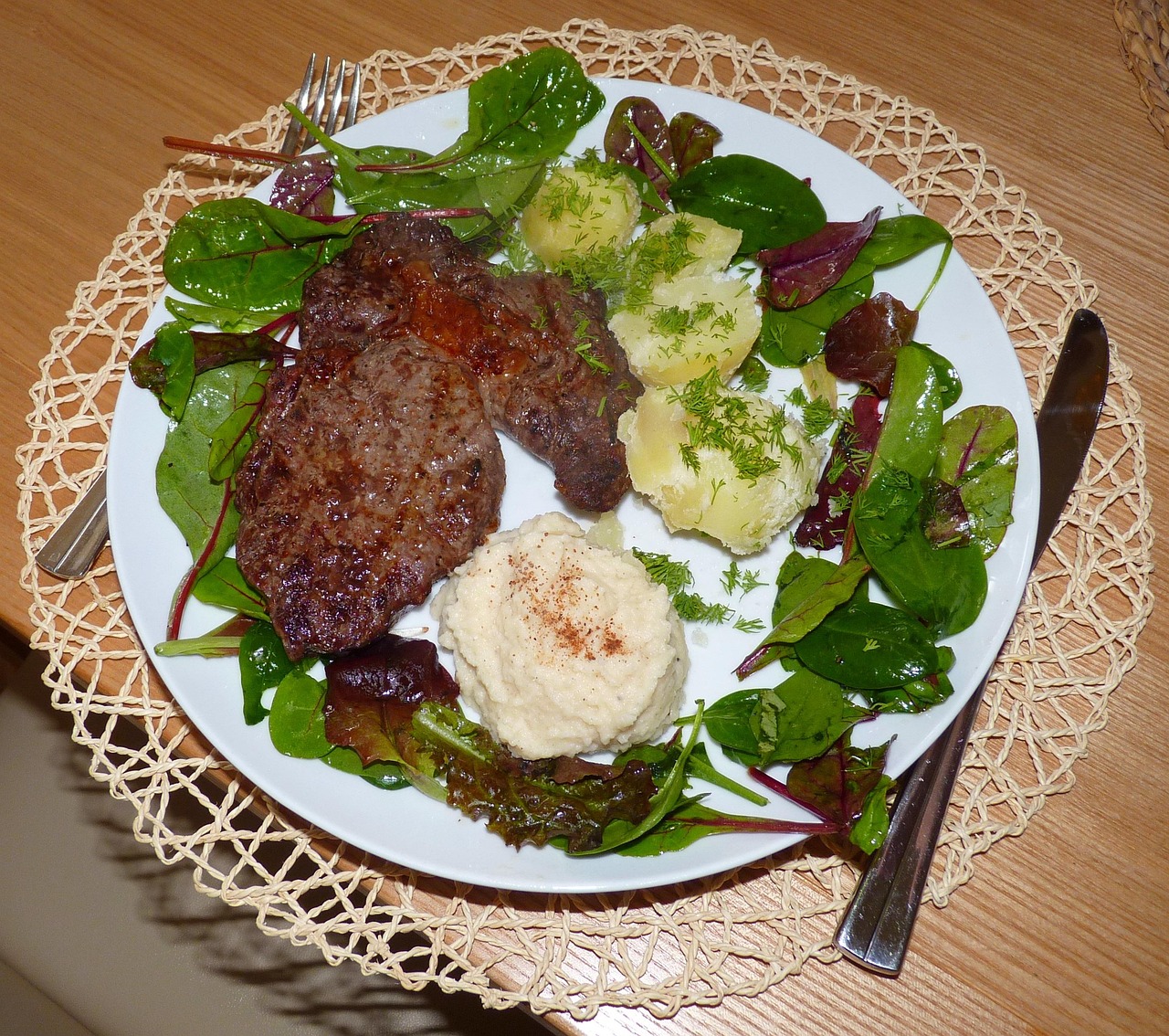
Here are more examples of how Black Swan Bistro uses images:



Practice Project: Personal Profile Page
Now add images to Alex Chen's profile page. Include a profile photo and a small gallery of three hobby images for photography, hiking, and a favourite landscape scene.
Gallery Structure Hint
Consider organizing your gallery like this:
Tips:
- Use a container
divwith a class for the gallery - Wrap each image and caption in a
figureelement - Group related images together
- Add descriptive captions using
figcaption - Consider using CSS later to create a grid layout
Try it yourself:
Image File Tips
- Use appropriate file formats:
- JPG - Photos and complex images
- PNG - Graphics with transparency
- SVG - Logos and icons
- WebP - Modern format for all types
- Optimize images for web use (compress files)
- Choose appropriate dimensions for your layout
- Consider loading time and bandwidth usage
Pause & Check: Do You Understand?
Before moving forward, can you answer these?
- What is the purpose of the alt attribute in the <img> element?
- Which image format would you choose for a company logo, and why?
- What is the difference between a decorative image (alt="") and an informative image?
- How does lazy loading improve web page performance?
Check Your Answers
- The alt attribute provides alternative text for images, which is important for accessibility (screen readers), SEO, and displaying text when images fail to load. It should describe the image's content or function.
- SVG (Scalable Vector Graphics) is ideal for logos because it stays sharp at any size, has a smaller file size for simple graphics, can be styled with CSS, and looks great on any screen resolution.
- Decorative images (with empty alt="") are purely aesthetic and hidden from screen readers. Informative images convey content or information, requiring descriptive alt text that explains what the image shows or represents.
- Lazy loading (loading="lazy") defers loading of images until they are near the viewport, reducing initial page load time, saving bandwidth, and improving performance, especially on pages with many images.
How confident are you with this concept?
Still confused | Getting there | Got it | Could explain it to a friend
Lesson checkpoint
Test Your Knowledge
Strengthen your understanding of Html Images by answering the quiz below.
Html Images Quiz
Test your understanding of Html Images concepts.
Lesson Complete: What You Learned
Key Takeaways:
- The <img> element requires src and alt attributes for proper functionality and accessibility
- Alt text should describe image content for screen readers, not just repeat nearby text
- Different image formats serve different purposes: JPG for photos, PNG for transparency, SVG for logos, WebP for modern browsers
- Lazy loading and proper sizing improve page performance and user experience
- The <figure> and <figcaption> elements provide semantic structure for images with captions
Learning Objectives Review:
Look back at what you set out to learn. Can you now:
- Add images to web pages using the img element Check!
- Write descriptive and accessible alt text for screen readers Got it!
- Choose the right image format (JPG, PNG, SVG, WebP) Can explain it!
- Optimize images for faster page loading Could teach this!
- Use figure and figcaption for semantic image markup Check!
If you can confidently answer "yes" to most of these, you're ready to move on!
Think & Reflect:
Accessibility First
- How would you describe an image to someone who can't see it?
- When is it appropriate to use an empty alt="" attribute?
Performance Matters
- How do large images affect your website's loading speed?
- What strategies can you use to optimize images without sacrificing quality?
Real-World Test:
Images are essential for engaging users and conveying information quickly. Professional websites use images strategically: e-commerce sites showcase products, news sites illustrate stories, portfolio sites display work samples, and corporate sites build brand identity through visual elements.
Understanding image optimization and accessibility ensures your images enhance rather than hinder the user experience. Tools like TinyPNG, ImageOptim, and modern formats like WebP help keep your sites fast and responsive while maintaining visual quality.
Looking Ahead:
With images mastered, you're ready to learn about HTML document structure and semantic elements. In the next lesson, you'll discover how to organize your HTML properly using header, nav, main, article, section, aside, and footer elements.
Understanding document structure is important for creating accessible, SEO-friendly websites that are easy to maintain and scale.
Recommended Next Steps
Continue Learning
Ready to move forward? Continue with the next tutorial in this series:
Document StructureRelated Topics
Explore these related tutorials to expand your knowledge:
Practice Projects
Apply what you've learned with these hands-on projects:
Additional Resources
Deepen your understanding with these helpful resources:
- MDN: Images in HTML - Guide to using images effectively
- Web.dev: Responsive images - Best practices for responsive images
Progress tracking is disabled. Enable it in to track your completed tutorials.
Cookie Settings