Accessibility Is Not an Add-On
Learn what web accessibility means, why it belongs at the start of the development process, and how the WCAG POUR principles help you spot common barriers before they become expensive rebuilds.
Start Here
Imagine walking into a building where the front door exists, although only people who can climb a ladder can reach it.
That would be absurd in the physical world. On the web, we accidentally build "ladder doors" all the time: buttons that only work with a mouse, text that cannot be read against its background, forms that do not explain errors, images with no useful alternative text, and layouts that fall apart when users zoom in.
Accessibility is the habit of asking: Can people actually use this?
Not "does it look polished in my browser on my screen with my mouse?"
Can people use it when they are tired, injured, using a keyboard, using a screen reader, zooming the page, dealing with glare, using a phone one-handed, or trying to complete a task quickly?
That is where accessibility starts.
- Where have you already seen accessibility is not an add-on in a real interface?
- Which part of this topic currently feels most important to test in a real page?
Learn what web accessibility means, why it belongs at the start of the development process, and how the WCAG POUR principles help you spot common barriers before they become expensive rebuilds.
Learning Objectives
By the end of this lesson, you'll be able to:
- explain accessibility in plain English
- describe the four WCAG POUR principles
- identify common barriers in a webpage
- understand why accessibility belongs in planning, design, code, and testing
- complete a simple first-pass accessibility review
Why This Matters:
Learn what web accessibility means, why it belongs at the start of the development process, and how the WCAG POUR principles help you spot common barriers before they become expensive rebuilds.
Prerequisites
Before you start:
Learners should understand:
- basic HTML page structure
- basic CSS styling
- links, images, headings, and buttons
- the idea that different users browse the web in different ways
Core explanation
Accessibility means designing and building websites so that people with different bodies, devices, abilities, preferences, and contexts can access the same information and complete the same tasks.
It is often discussed in relation to disability, and rightly so. Accessibility supports people with visual, hearing, motor, cognitive, neurological, and speech-related disabilities. It also helps people dealing with temporary or situational barriers.
For example:
- A broken wrist can make mouse use difficult.
- Bright sunlight can make low-contrast text hard to read.
- A sleeping baby nearby can make captions essential.
- A slow connection can make over-complicated pages painful.
- Anxiety or cognitive load can make unclear forms harder to complete.
Accessibility is not separate from usability. It is usability with more people included.
WCAG in plain English
WCAG stands for Web Content Accessibility Guidelines. It gives developers, designers, content creators, and organisations a shared way to talk about accessibility.
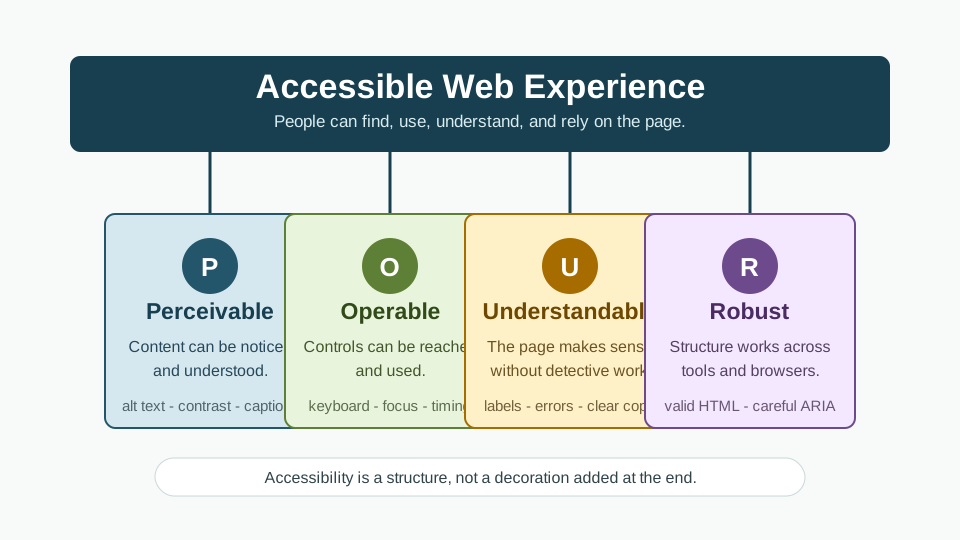
The four foundation principles are often remembered as POUR:
Perceivable
People need to be able to perceive the information.
This means content should not rely on only one sense or one format. Examples include:
- text alternatives for meaningful images
- captions or transcripts for audio/video content
- readable colour contrast
- content that remains available when zoomed
Plain-English question:
Can users notice and understand the information being presented?
Operable
People need to be able to use the interface.
Examples include:
- links and buttons that work with a keyboard
- no keyboard traps
- visible focus indicators
- enough time to complete tasks
- clear navigation
Plain-English question:
Can users move through the site and use the controls?
Understandable
People need to understand the content and interface.
Examples include:
- clear language
- predictable navigation
- helpful form labels
- useful error messages
- consistent layout patterns
Plain-English question:
Does the page make sense, or does it make users do detective work?
Robust
Content needs to work reliably across browsers, devices, and assistive technologies.
Examples include:
- valid HTML
- semantic elements
- correct form markup
- careful ARIA use
- code that does not break when technology changes
Plain-English question:
Is the structure strong enough for browsers and assistive tools to interpret it?
Accessibility is a workflow
A common mistake is treating accessibility as a final checklist.
That usually leads to awkward patching:
- adding ARIA to broken HTML
- changing colours after the whole design is built
- trying to fix keyboard traps after JavaScript is already tangled
- writing alt text after everyone has forgotten why images were chosen
A better workflow is:
- Plan: What tasks must users complete?
- Structure: Is the HTML meaningful?
- Design: Is the content readable and responsive?
- Build: Are controls native and keyboard-friendly?
- Test: Can users navigate, read, understand, and complete tasks?
- Improve: Fix barriers as part of normal development.
Accessibility is not one giant heroic effort. It is a set of small, sensible habits.
Starter example
Use this as a deliberately imperfect page for learners to inspect.
<!doctype html>
<html lang="en">
<head>
  <meta charset="utf-8">
  <title>Coastal Coffee</title>
  <link rel="stylesheet" href="styles.css">
</head>
<body>
  <div class="top">
    <div class="logo">Coastal Coffee</div>
    <div class="menu">
      <span>Home</span>
      <span>Menu</span>
      <span>Contact</span>
    </div>
  </div>

  <div class="hero">
    <img src="coffee.jpg">
    <div class="big-text">Fresh coffee by the coast</div>
    <div class="button">View our menu</div>
  </div>

  <div class="section">
    <div class="heading">Opening hours</div>
    <p>Open daily from 7am to 2pm.</p>
  </div>
</body>
</html>
body {
font-family: Arial, sans-serif;
margin: 0;
}
.top {
display: flex;
justify-content: space-between;
padding: 1rem;
background: #222;
color: #777;
}
.menu span {
margin-left: 1rem;
}
.hero {
padding: 2rem;
text-align: center;
}
.hero img {
width: 100%;
max-height: 300px;
object-fit: cover;
}
.big-text {
font-size: 2rem;
}
.button {
display: inline-block;
background: #333;
color: white;
padding: 0.75rem 1rem;
}Accessibility review prompts
Ask learners to inspect the starter page and answer:
- Can the navigation items be activated as links?
- Is the page structure clear to assistive technology?
- Does the image have an
altattribute? - Is the button actually a button or link?
- Is the colour contrast in the header readable?
- Are headings marked up as headings?
- Could a keyboard user move through this page sensibly?
- Is the page language declared?
- Would the content still make sense without the image?
- What would be the first three fixes?
Improved direction
Do not fully fix everything in Lesson 1. This lesson should introduce the audit mindset. Show learners that accessibility problems often appear in ordinary code.
A partial improvement could look like this:
<header class="site-header">
  <a class="site-logo" href="/">Coastal Coffee</a>

  <nav aria-label="Main navigation">
    <ul>
      <li><a href="/">Home</a></li>
      <li><a href="/menu.html">Menu</a></li>
      <li><a href="/contact.html">Contact</a></li>
    </ul>
  </nav>
</header>

<main>
  <section class="hero">
    <img src="coffee.jpg" alt="Cup of coffee on a table near the coast">
    <h1>Fresh coffee by the coast</h1>
    <a class="button" href="/menu.html">View our menu</a>
  </section>

  <section>
    <h2>Opening hours</h2>
    <p>Open daily from 7am to 2pm.</p>
  </section>
</main>
How and why this improves the page
header,nav,main, andsectiongive the page meaningful structure.- Real links replace inactive
spanelements. - The hero text becomes a real
h1. - The menu call-to-action becomes a link because it takes users to another page.
- The image now has an
altattribute. - The navigation has an accessible label.
- The structure is easier for browsers, screen readers, keyboard users, and future developers to understand.
Check Your Understanding
Before moving forward, can you answer these?
- What does accessibility mean?
- What does POUR stand for?
- Why is accessibility not only about screen readers?
- Why is semantic HTML usually the first fix?
- Why does visual polish not guarantee usability?
Check Your Answers
- Accessibility means designing and building websites so people with different abilities, devices, preferences, and situations can access the same information and complete the same tasks.
- POUR stands for Perceivable, Operable, Understandable, and Robust: the four WCAG principles for accessible web content.
- Screen readers matter, but accessibility also includes keyboard access, readable contrast, captions, clear forms, zoom support, understandable content, and many temporary or situational needs.
- Semantic HTML gives browsers and assistive technologies built-in meaning and behaviour before extra CSS, JavaScript, or ARIA is added.
- A page can look clean while still hiding structure, blocking keyboard access, using poor contrast, or providing unclear labels and errors.
How confident are you with this concept?
Still confused | Getting there | Got it | Could explain it to a friend
Guided Practice
Give learners a short page for a fictional business or project. Ask them to create an accessibility issue list using these categories:
Practice task
Give learners a short page for a fictional business or project. Ask them to create an accessibility issue list using these categories:
- Structure
- Text and readability
- Images
- Links and buttons
- Keyboard access
- Forms, if present
- Content clarity
They should not fix the page yet. The goal is to notice barriers.
Independent Practice
Learners choose one page they have already built and write a short accessibility review:
Your Task:
# Accessibility first-pass review

## Page reviewed

## What works well

## Possible barriers

## First three fixes

## What I need to learn next
Accessibility testing task
Use only the keyboard:
- Press
Tabto move forward. - Press
Shift + Tabto move backward. - Press
Enteron links. - Press
SpaceorEnteron buttons. - Watch where focus moves.
- Note anything that cannot be reached or activated.
Common mistakes
- Thinking accessibility only matters for screen reader users.
- Treating WCAG as a scary legal document instead of a practical guide.
- Waiting until the end of a project.
- Assuming a page is accessible because it looks clean.
- Replacing native HTML controls with clickable
divs.
Closure
Key Takeaways:
- explain accessibility in plain English
- describe the four WCAG POUR principles
- identify common barriers in a webpage
- understand why accessibility belongs in planning, design, code, and testing
- complete a simple first-pass accessibility review
Learning Objectives Review:
Look back at what you set out to learn. Can you now:
- explain accessibility in plain English Check!
- describe the four WCAG POUR principles Got it!
- identify common barriers in a webpage Can explain it!
- understand why accessibility belongs in planning, design, code, and testing Could teach this!
- complete a simple first-pass accessibility review Check!
If you can confidently answer "yes" to most of these, you're ready to move on!
Think & Reflect:
Pause and reflect
- Which idea from this lesson now feels practical rather than abstract?
- What would you build or test next to make this stick?
Looking Ahead:
Accessibility starts with attention. The first skill is not memorising every rule. The first skill is learning to notice when a page quietly assumes that every user sees, moves, reads, hears, and clicks in the same way.
That assumption is where many web problems begin.
Next lesson
Next, learners should study Semantic HTML: The First Accessibility Tool.
Recommended Next Steps
Continue Learning
Ready to move forward? Continue with the next tutorial in this series:
Semantic HTML: The First Accessibility ToolRelated Topics
Explore these related tutorials to expand your knowledge:
Additional Resources
Deepen your understanding with these helpful resources:
- W3C WAI Fundamentals - Authoritative W3C guidance on why accessibility matters and how people with different disabilities use the web.
- W3C WAI Tutorials - Practical W3C tutorials for accessible page structure, menus, images, forms, and tables.
- Digital Accessibility Foundations Course - A free W3C course for technical and non-technical learners who want an end-to-end accessibility primer.
- MDN Web Docs: Accessibility - Developer-focused documentation covering semantic HTML, CSS, JavaScript, and WAI-ARIA basics.
- WebAIM - Plain-English articles, tutorials, and tools that bridge WCAG guidance and practical implementation.
- The A11Y Project - A community-driven guide that makes accessibility concepts easier to digest.
- The A11Y Project Accessibility Checklist - A useful checklist for checking accessibility basics as you work.
- Inclusive Design Principles - A framework for designing more inclusive user experiences from the start.
- WAVE Web Accessibility Evaluation Tool - A browser-based tool that overlays accessibility issues directly on a page.
- WebAIM Contrast Checker - A simple tool for testing WCAG colour contrast ratios.