Testing Accessibility as You Build
Learn a practical accessibility testing workflow that combines manual checks, browser tools, and automated tools.
Start Here
Automated accessibility tools are useful.
They are also not magic.
An automated tool can tell you that an image is missing alt text. It cannot always tell you whether the alt text is meaningful.
It can detect some contrast failures. It cannot decide whether your instructions make sense to a stressed human being trying to complete a form before an appointment.
Accessibility testing needs tools and judgement.
The good news: you can start with a small repeatable workflow.
- Where have you already seen testing accessibility as you build in a real interface?
- Which part of this topic currently feels most important to test in a real page?
Learn a practical accessibility testing workflow that combines manual checks, browser tools, and automated tools.
Learning Objectives
By the end of this lesson, you'll be able to:
- run a basic manual accessibility check
- use keyboard testing as a first-line habit
- inspect headings, labels, alt text, contrast, and focus
- use automated tools without over-trusting them
- record accessibility issues clearly
- create a practical fix list
Why This Matters:
Learn a practical accessibility testing workflow that combines manual checks, browser tools, and automated tools.
Prerequisites
Before you start:
Learners should understand:
- semantic HTML
- alt text
- keyboard navigation
- forms
- colour contrast
- basic ARIA
Core explanation
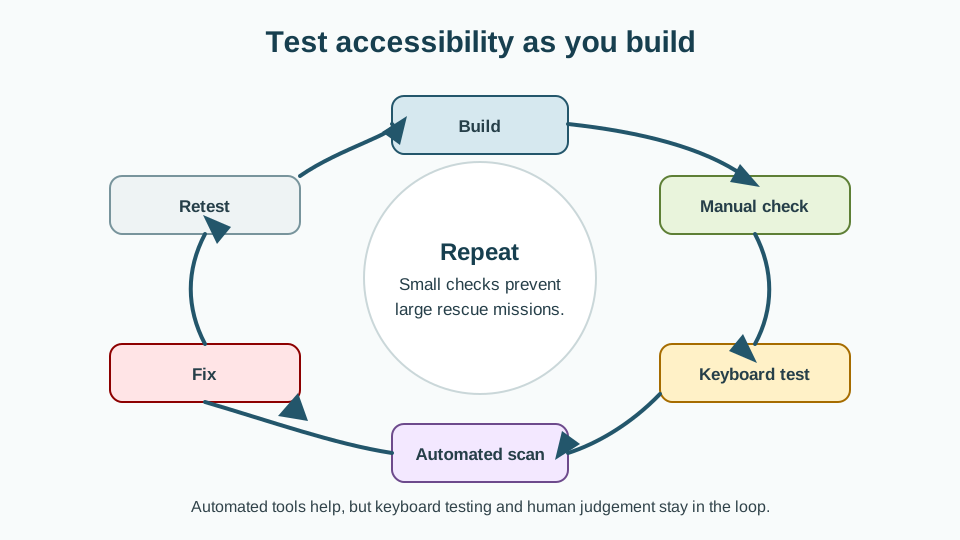
Accessibility testing should happen while you build, not only at the end.
A useful beginner workflow combines:
- Manual review
- Keyboard testing
- Browser inspection
- Automated scanning
- Fix and retest
- Documenting what changed
Each method catches different problems.
What automated tools can catch
Automated tools can often detect:
- missing alt attributes
- missing form labels
- some colour contrast failures
- empty buttons or links
- duplicate IDs
- invalid ARIA attributes
- missing document language
- heading structure warnings
What automated tools may miss
Automated tools may not reliably judge:
- whether alt text is meaningful
- whether link text makes sense in context
- whether instructions are clear
- whether a keyboard experience feels logical
- whether focus order is intuitive
- whether content is understandable
- whether ARIA is helpful or misleading
- whether the user journey is emotionally or cognitively difficult
Tools help. Humans still need to think. Annoying, I know. Very rude of reality.
Basic testing workflow
Step 1: Check page structure
Ask:
- Is there one clear
h1? - Do headings follow a logical order?
- Is there a
mainelement? - Are page regions meaningful?
- Is navigation marked up as navigation?
Step 2: Check links and buttons
Ask:
- Do links go somewhere?
- Do buttons perform actions?
- Does link text make sense?
- Are clickable things real interactive elements?
- Are controls labelled clearly?
Step 3: Check images
Ask:
- Does every image have an
altattribute? - Are decorative images empty with
alt=""? - Does informative alt text preserve meaning?
- Do functional image links describe the action?
Step 4: Check keyboard access
Ask:
- Can the page be used without a mouse?
- Is focus visible?
- Is focus order logical?
- Are there keyboard traps?
- Can menus, accordions, and forms be operated?
Step 5: Check forms
Ask:
- Does every input have a label?
- Are labels connected to inputs?
- Is help text connected where needed?
- Are errors clear?
- Are required fields explained?
- Are related options grouped?
Step 6: Check colour and readability
Ask:
- Is text contrast strong enough?
- Are links recognisable?
- Is colour supported by text or icons?
- Is text readable at 200% zoom?
- Does spacing support scanning?
Step 7: Run an automated tool
Suggested tools:
- Browser DevTools accessibility tree
- Lighthouse accessibility audit
- WAVE browser extension
- axe DevTools browser extension
Treat results as a starting point, not a final verdict.
Starter audit template
# Accessibility test report

## Page or component tested

## Date tested

## Tested by

## Manual checks

### Structure and headings

### Links and buttons

### Images and alt text

### Keyboard navigation

### Forms

### Colour and readability

### ARIA and dynamic content

## Automated tool used

## Issues found

| Issue | Impact | Suggested fix | Status |
|---|---|---|---|
| Missing form label | High | Add visible label connected with for/id | To do |

## Fixes completed

## Items needing further review
Sample test page
Use a deliberately imperfect test page:
<!doctype html>
<html>
<head>
  <meta charset="utf-8">
  <title>Workshop Signup</title>
</head>
<body>
  <div class="header">
    <div>GraphiteEdge Workshops</div>
    <div>
      <span>Home</span>
      <span>Workshops</span>
      <span>Contact</span>
    </div>
  </div>

  <div class="main">
    <h3>Learn CSS Layout</h3>
    <img src="layout-workshop.jpg">
    <p>Join a practical workshop on layout patterns.</p>

    <form>
      <input placeholder="Name">
      <input placeholder="Email">
      <button>Go</button>
    </form>
  </div>
</body>
</html>
Example audit findings
# Accessibility test report

## Page or component tested

Workshop Signup page

## Manual checks

### Structure and headings

- Missing `lang` attribute on `html`.
- Header and main content use generic `div` elements.
- First heading is `h3`; page should start with a clear `h1`.

### Links and buttons

- Navigation items are spans, not links.
- Submit button says “Go”, which is vague.

### Images and alt text

- Image is missing an `alt` attribute.

### Keyboard navigation

- Navigation items cannot receive focus.
- Form fields and button can be reached.

### Forms

- Inputs use placeholders instead of visible labels.
- Email input does not use `type="email"`.

## Issues found

| Issue | Impact | Suggested fix | Status |
|---|---|---|---|
| Missing page language | Medium | Add `lang="en"` to `html` | To do |
| Navigation spans | High | Convert to real links | To do |
| Missing form labels | High | Add visible labels connected to inputs | To do |
| Missing alt attribute | Medium | Add appropriate alt text or empty alt | To do |
Improved version
<!doctype html>
<html lang="en">
<head>
  <meta charset="utf-8">
  <title>Workshop Signup | GraphiteEdge</title>
</head>
<body>
  <a class="skip-link" href="#main-content">Skip to main content</a>

  <header class="site-header">
    <a href="/">GraphiteEdge Workshops</a>

    <nav aria-label="Main navigation">
      <ul>
        <li><a href="/">Home</a></li>
        <li><a href="/workshops.html">Workshops</a></li>
        <li><a href="/contact.html">Contact</a></li>
      </ul>
    </nav>
  </header>

  <main id="main-content">
    <h1>Learn CSS Layout</h1>

    <img
      src="layout-workshop.jpg"
      alt="Workshop desk with layout sketches and a laptop"
    >

    <p>Join a practical workshop on layout patterns.</p>

    <form>
      <div>
        <label for="name">Name</label>
        <input id="name" name="name" type="text" autocomplete="name">
      </div>

      <div>
        <label for="email">Email address</label>
        <input id="email" name="email" type="email" autocomplete="email">
      </div>

      <button type="submit">Register for the workshop</button>
    </form>
  </main>
</body>
</html>
How and why this improves the page
lang="en"declares the page language.- Landmarks identify the header, navigation, and main content.
- Navigation items are links.
- The page starts with a clear
h1. - The image has alt text.
- Form fields have visible labels.
- The email field uses the correct input type.
- The submit button describes the action.
- The skip link improves keyboard navigation.
Check Your Understanding
Before moving forward, can you answer these?
- Why are automated tools not enough?
- What should you test manually?
- Why is keyboard testing essential?
- What belongs in an accessibility issue report?
- Why should you retest after fixing issues?
Check Your Answers
- Automated tools catch many technical issues, but they cannot reliably judge meaning, clarity, focus logic, or whether a task feels understandable to a person.
- Manually test structure, headings, links, buttons, images, forms, keyboard access, focus order, contrast, readability, and dynamic content.
- Keyboard testing quickly reveals whether controls can be reached, operated, understood, and escaped without a mouse.
- Include the page or component, test method, issue, impact, suggested fix, status, and any items needing further review.
- Fixes can fail, only partially solve the issue, or create new problems, so each fix needs verification.
How confident are you with this concept?
Still confused | Getting there | Got it | Could explain it to a friend
Guided Practice
Give learners the sample test page and ask them to:
Practice task
Give learners the sample test page and ask them to:
- complete the audit template
- identify at least six issues
- fix three issues
- run a keyboard test
- record what changed
Independent Practice
Learners choose a page from their own project and complete a mini audit:
Your Task:
# Mini accessibility audit

## Page tested

## Main user task

## Manual findings

## Automated findings

## Top three fixes

## Fixes completed

## What still needs review
Accessibility testing task
Complete the full workflow:
- Manual structure review.
- Keyboard-only test.
- Image alt text review.
- Form label review.
- Colour contrast check.
- Automated scan.
- Fix at least three issues.
- Retest the fixed page.
Common mistakes
- Treating a perfect automated score as proof of accessibility.
- Ignoring keyboard testing.
- Fixing warnings without understanding them.
- Forgetting to retest after changes.
- Testing only the homepage.
- Testing only at one screen size.
- Testing only with a mouse.
- Keeping accessibility notes in your head instead of recording them.
Closure
Key Takeaways:
- use semantic HTML as the foundation
- write context-aware alt text
- test keyboard navigation
- build clearer forms
- improve readability and contrast
- use ARIA carefully
- run a practical mini accessibility audit
Learning Objectives Review:
Look back at what you set out to learn. Can you now:
- run a basic manual accessibility check Check!
- use keyboard testing as a first-line habit Got it!
- inspect headings, labels, alt text, contrast, and focus Can explain it!
- use automated tools without over-trusting them Could teach this!
- record accessibility issues clearly Check!
- create a practical fix list Got it!
If you can confidently answer "yes" to most of these, you're ready to move on!
Think & Reflect:
Pause and reflect
- Which idea from this lesson now feels practical rather than abstract?
- What would you build or test next to make this stick?
Looking Ahead:
Accessibility testing is not about becoming perfect overnight. It is about building a habit of checking whether people can perceive, operate, understand, and rely on what you have built.
The more often you test, the less dramatic the fixes become.
That is the quiet win: accessibility stops being a rescue mission and becomes part of the craft.
Series closure
By the end of Accessibility Essentials, learners should understand that accessibility is not one technique. It is a way of thinking through structure, content, interaction, design, and testing.
They should now be able to:
- use semantic HTML as the foundation
- write context-aware alt text
- test keyboard navigation
- build clearer forms
- improve readability and contrast
- use ARIA carefully
- run a practical mini accessibility audit
The next step could be a project-based tutorial where learners take a messy landing page and improve it using all eight lessons.
Recommended Next Steps
Continue Learning
Ready to move forward? Continue with the next tutorial in this series:
Website Care and FeedingRelated Topics
Explore these related tutorials to expand your knowledge:
Additional Resources
Deepen your understanding with these helpful resources:
- W3C WAI Fundamentals - Authoritative W3C guidance on why accessibility matters and how people with different disabilities use the web.
- W3C WAI Tutorials - Practical W3C tutorials for accessible page structure, menus, images, forms, and tables.
- Digital Accessibility Foundations Course - A free W3C course for technical and non-technical learners who want an end-to-end accessibility primer.
- MDN Web Docs: Accessibility - Developer-focused documentation covering semantic HTML, CSS, JavaScript, and WAI-ARIA basics.
- WebAIM - Plain-English articles, tutorials, and tools that bridge WCAG guidance and practical implementation.
- The A11Y Project - A community-driven guide that makes accessibility concepts easier to digest.
- The A11Y Project Accessibility Checklist - A useful checklist for checking accessibility basics as you work.
- Inclusive Design Principles - A framework for designing more inclusive user experiences from the start.
- WAVE Web Accessibility Evaluation Tool - A browser-based tool that overlays accessibility issues directly on a page.
- WebAIM Contrast Checker - A simple tool for testing WCAG colour contrast ratios.