ARIA: Use With Care
Learn what ARIA is, when it helps, and why native HTML should be your first choice.
Start Here
ARIA sounds like something you should sprinkle over a page to make it accessible.
Please do not season your HTML like that.
ARIA can help when native HTML does not provide enough meaning for custom or dynamic interfaces. Used badly, it can make a page more confusing than before.
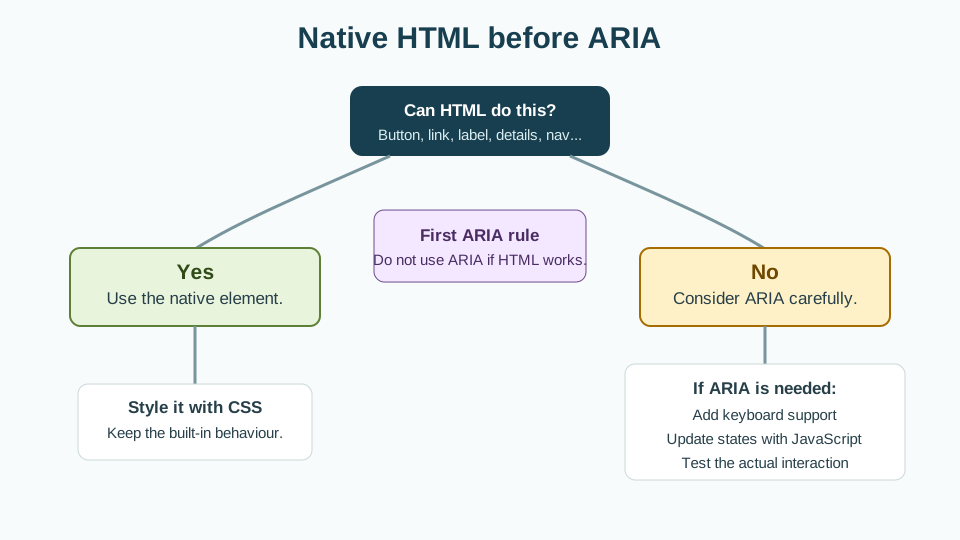
The first rule is simple:
If native HTML can do the job, use native HTML.
ARIA is a useful tool. It is not a forgiveness spell for chaotic markup.
- Where have you already seen aria: use with care in a real interface?
- Which part of this topic currently feels most important to test in a real page?
Learn what ARIA is, when it helps, and why native HTML should be your first choice.
Learning Objectives
By the end of this lesson, you'll be able to:
- explain what ARIA is for
- describe roles, properties, and states
- recognise when native HTML is better
- use `aria-label`, `aria-labelledby`, and `aria-describedby`
- understand basic expanded/collapsed state
- avoid common ARIA mistakes
- test whether ARIA changes match visible behaviour
Why This Matters:
Learn what ARIA is, when it helps, and why native HTML should be your first choice.
Prerequisites
Before you start:
Learners should understand:
- semantic HTML
- keyboard navigation
- basic JavaScript interactions
- accessible forms
- the difference between links and buttons
Core explanation
ARIA stands for Accessible Rich Internet Applications.
ARIA attributes can add information for assistive technologies when HTML alone is not enough.
ARIA can describe:
- what something is
- what state it is in
- what it is connected to
- whether content has changed
- whether a control is expanded or collapsed
- what accessible name a control should have
ARIA does not usually change visual appearance or browser behaviour. It changes accessibility information.
That means ARIA can create a mismatch if the code says one thing and the visible interface does another.
Three basic ARIA ideas
Roles
Roles say what something is.
<div role="button">Open menu</div>This says the div should be treated as a button.
However, this is usually worse than:
<button type="button">Open menu</button>The real button already includes keyboard behaviour and correct semantics.
Properties
Properties describe relationships or extra information.
<input
  id="email"
  name="email"
  type="email"
  aria-describedby="email-help"
>
<p id="email-help">Use the address you check most often.</p>
States
States describe changing conditions.
<button
  type="button"
  aria-expanded="false"
  aria-controls="site-menu"
>
  Menu
</button>
When the menu opens, JavaScript should update the state:
aria-expanded="true"Useful ARIA attributes
aria-label
Gives an accessible name when visible text is not available.
<button type="button" aria-label="Close dialog">
  ×
</button>
Use carefully. Visible text is usually better.
aria-labelledby
Uses existing visible text as the accessible name.
<section aria-labelledby="featured-heading">
  <h2 id="featured-heading">Featured tutorials</h2>
  ...
</section>
aria-describedby
Connects extra description text.
<label for="username">Username</label>
<p id="username-help">Use 6 to 20 characters.</p>
<input id="username" name="username" aria-describedby="username-help">
aria-expanded
Indicates whether a collapsible area is open or closed.
<button
  type="button"
  aria-expanded="false"
  aria-controls="faq-answer-1"
>
  What is accessibility?
</button>

<div id="faq-answer-1" hidden>
  <p>Accessibility means making websites usable by people with different needs and technologies.</p>
</div>
Starter code
<div class="accordion">
  <div class="accordion-title" onclick="toggleAnswer()">
    What is semantic HTML?
  </div>

  <div class="accordion-panel">
    <p>Semantic HTML uses elements according to their meaning.</p>
  </div>
</div>
Problems:
- The clickable title is a
div. - It may not be keyboard accessible.
- It does not communicate expanded or collapsed state.
- The relationship between title and panel is unclear.
Improved code
<div class="accordion">
  <h2>
    <button
      type="button"
      class="accordion-trigger"
      aria-expanded="false"
      aria-controls="semantic-html-panel"
      id="semantic-html-trigger"
    >
      What is semantic HTML?
    </button>
  </h2>

  <div
    id="semantic-html-panel"
    class="accordion-panel"
    aria-labelledby="semantic-html-trigger"
    hidden
  >
    <p>Semantic HTML uses elements according to their meaning.</p>
  </div>
</div>
Supporting JavaScript
const trigger = document.querySelector('.accordion-trigger');
const panel = document.querySelector('#semantic-html-panel');

trigger.addEventListener('click', () => {
  const isExpanded = trigger.getAttribute('aria-expanded') === 'true';

  trigger.setAttribute('aria-expanded', String(!isExpanded));
  panel.hidden = isExpanded;
});
Supporting CSS
.accordion-trigger {
  width: 100%;
  font: inherit;
  font-weight: 700;
  text-align: left;
  padding: 1rem;
  border: 2px solid #d4d4d4;
  background: #ffffff;
  cursor: pointer;
}

.accordion-trigger:focus-visible {
  outline: 3px solid #facc15;
  outline-offset: 3px;
}

.accordion-panel {
  padding: 1rem;
  border: 2px solid #d4d4d4;
  border-top: 0;
}
How and why this improves the component
- The trigger is a native button.
- The button can receive focus and respond to keyboard activation.
aria-expandedcommunicates whether the panel is open.aria-controlsidentifies the controlled panel.hiddenremoves collapsed content from the page until it is shown.- JavaScript keeps the visual state and accessibility state aligned.
Native HTML before ARIA examples
Prefer this:
<button type="button">Open menu</button>Instead of this:
<div role="button" tabindex="0">Open menu</div>Prefer this:
<nav aria-label="Main navigation">
  ...
</nav>
Instead of this:
<div role="navigation">
  ...
</div>
Prefer this:
<label for="search">Search tutorials</label>
<input id="search" name="search" type="search">
Instead of this:
<input type="search" aria-label="Search tutorials">The ARIA version can be valid when no visible label fits the design, although visible labels are often clearer for everyone.
Check Your Understanding
Before moving forward, can you answer these?
- What is the first rule of ARIA?
- Does ARIA usually change visual behaviour?
- Why is `role="button"` on a `div` usually weaker than a real button?
- What does `aria-expanded` communicate?
- Why must JavaScript keep ARIA states updated?
Check Your Answers
- Do not use ARIA when native HTML can provide the needed semantics and behaviour.
- No. ARIA changes accessibility semantics, not the visual design or interaction by itself.
- A real button already has focus, keyboard activation, semantics, and form behaviour built in. A div needs all of that recreated.
- It tells assistive technology whether a collapsible control or region is currently open or closed.
- If the visual state and ARIA state disagree, assistive technology users receive misleading information.
How confident are you with this concept?
Still confused | Getting there | Got it | Could explain it to a friend
Guided Practice
Give learners this poor menu toggle:
Practice task
Give learners this poor menu toggle:
<div class="menu-toggle">Menu</div>
<div class="menu">
  <a href="/">Home</a>
  <a href="/tutorials.html">Tutorials</a>
</div>
Ask them to:
- convert the trigger to a button
- add
aria-expanded - add
aria-controls - hide the menu by default
- update the state with JavaScript
- test with keyboard
Independent Practice
Learners choose one interactive pattern and write an ARIA decision note:
Your Task:
# ARIA decision note

## Pattern

## Can native HTML do this?

## What semantic element should be used first?

## Is ARIA needed?

## Which ARIA attributes are needed?

## How will the state be updated?

## Keyboard test notes
Accessibility testing task
- Test the component with keyboard only.
- Confirm focus lands on the trigger.
- Confirm
EnterandSpaceactivate the trigger. - Inspect whether
aria-expandedchanges when the panel opens/closes. - Confirm hidden content is not reachable when closed.
- Confirm visible state and accessibility state match.
Common mistakes
- Adding ARIA when native HTML would work.
- Adding
role="button"without keyboard behaviour. - Forgetting to update
aria-expanded. - Hiding content visually while leaving it focusable.
- Giving controls accessible names that differ from visible labels.
- Using
aria-labelto hide vague visible text. - Treating ARIA as a replacement for testing.
Closure
Key Takeaways:
- explain what ARIA is for
- describe roles, properties, and states
- recognise when native HTML is better
- use `aria-label`, `aria-labelledby`, and `aria-describedby`
- understand basic expanded/collapsed state
- avoid common ARIA mistakes
- test whether ARIA changes match visible behaviour
Learning Objectives Review:
Look back at what you set out to learn. Can you now:
- explain what ARIA is for Check!
- describe roles, properties, and states Got it!
- recognise when native HTML is better Can explain it!
- use `aria-label`, `aria-labelledby`, and `aria-describedby` Could teach this!
- understand basic expanded/collapsed state Check!
- avoid common ARIA mistakes Got it!
- test whether ARIA changes match visible behaviour Can explain it!
If you can confidently answer "yes" to most of these, you're ready to move on!
Think & Reflect:
Pause and reflect
- Which idea from this lesson now feels practical rather than abstract?
- What would you build or test next to make this stick?
Looking Ahead:
ARIA is powerful when it fills a real gap. It is risky when used to disguise weak HTML.
Start with native elements. Add ARIA only when it gives users information they would otherwise miss. Then test the result.
Next lesson
Next, learners should study Testing Accessibility as You Build.
Recommended Next Steps
Continue Learning
Ready to move forward? Continue with the next tutorial in this series:
Testing Accessibility as You BuildRelated Topics
Explore these related tutorials to expand your knowledge:
Additional Resources
Deepen your understanding with these helpful resources:
- W3C WAI Fundamentals - Authoritative W3C guidance on why accessibility matters and how people with different disabilities use the web.
- W3C WAI Tutorials - Practical W3C tutorials for accessible page structure, menus, images, forms, and tables.
- Digital Accessibility Foundations Course - A free W3C course for technical and non-technical learners who want an end-to-end accessibility primer.
- MDN Web Docs: Accessibility - Developer-focused documentation covering semantic HTML, CSS, JavaScript, and WAI-ARIA basics.
- WebAIM - Plain-English articles, tutorials, and tools that bridge WCAG guidance and practical implementation.
- The A11Y Project - A community-driven guide that makes accessibility concepts easier to digest.
- The A11Y Project Accessibility Checklist - A useful checklist for checking accessibility basics as you work.
- Inclusive Design Principles - A framework for designing more inclusive user experiences from the start.
- WAVE Web Accessibility Evaluation Tool - A browser-based tool that overlays accessibility issues directly on a page.
- WebAIM Contrast Checker - A simple tool for testing WCAG colour contrast ratios.