Colour, Contrast, and Readability
Learn how colour, contrast, spacing, text size, and states affect whether people can comfortably read and use a page.
Start Here
A design can be beautiful and still hard to read.
Low contrast, tiny text, long lines, colour-only status messages, and subtle hover states may look elegant in a mockup. In the real world, people use screens in glare, with tired eyes, on older devices, at different zoom levels, and with colour vision differences.
Readable design is not boring design.
Readable design is design that does not make people fight the page.
- Where have you already seen colour, contrast, and readability in a real interface?
- Which part of this topic currently feels most important to test in a real page?
Learn how colour, contrast, spacing, text size, and states affect whether people can comfortably read and use a page.
Learning Objectives
By the end of this lesson, you'll be able to:
- explain why colour contrast matters
- avoid relying on colour alone
- improve readability with text size, line height, and spacing
- style link, hover, focus, and active states
- test contrast using browser tools or accessibility checkers
- adjust a component to be easier to read and use
Why This Matters:
Learn how colour, contrast, spacing, text size, and states affect whether people can comfortably read and use a page.
Prerequisites
Before you start:
Learners should understand:
- CSS colour values
- basic typography styles
- links and buttons
- hover and focus states
- responsive layout basics
Core explanation
Colour affects:
- whether text can be read
- whether links are recognisable
- whether buttons look interactive
- whether status messages are understood
- whether focus and hover states are visible
- whether the page remains usable in different environments
Contrast is the difference between foreground and background.
For text, contrast needs to be strong enough that users can read comfortably. This is especially important for:
- body text
- small text
- button text
- navigation links
- error messages
- text over images
Do not rely on colour alone
This is a common issue.
Bad:
<p class="status-red">Unavailable</p>
<p class="status-green">Available</p>
If the only difference is colour, some users may miss the meaning.
Better:
<p class="status status-unavailable">
  <span aria-hidden="true">✕</span>
  Unavailable
</p>

<p class="status status-available">
  <span aria-hidden="true">✓</span>
  Available
</p>
Or use text labels clearly:
<p><strong>Status:</strong> Available</p>Colour can support meaning. It should not be the only carrier of meaning.
Readability basics
Good readability often comes from ordinary CSS decisions:
body {
  font-family: system-ui, sans-serif;
  font-size: 1rem;
  line-height: 1.6;
}

.content {
  max-width: 70ch;
}

p {
  margin-bottom: 1rem;
}
Useful habits:
- Avoid very small body text.
- Use comfortable line height.
- Limit long line lengths.
- Leave enough spacing between sections.
- Use headings to break up content.
- Avoid placing text over busy images.
- Keep interactive states clear.
Starter code
<section class="pricing-card">
  <p class="eyebrow">Popular</p>
  <h2>Starter Review</h2>
  <p class="price">$149</p>
  <p class="description">A practical homepage review for structure, SEO, and accessibility basics.</p>
  <a class="button" href="/services/starter-review.html">Learn more</a>
</section>
.pricing-card {
background: #f5f5f5;
color: #999999;
padding: 1rem;
border-radius: 0.5rem;
}
.eyebrow {
color: #ff7a7a;
font-size: 0.75rem;
text-transform: uppercase;
}
.price {
font-size: 2rem;
color: #bbbbbb;
}
.description {
font-size: 0.85rem;
line-height: 1.2;
}
.button {
display: inline-block;
background: #cccccc;
color: #ffffff;
padding: 0.5rem 0.75rem;
text-decoration: none;
}Improved code
.pricing-card {
  max-width: 28rem;
  background: #ffffff;
  color: #171717;
  padding: 1.5rem;
  border: 1px solid #d4d4d4;
  border-radius: 0.75rem;
}

.eyebrow {
  color: #7c2d12;
  font-size: 0.875rem;
  font-weight: 700;
  text-transform: uppercase;
  letter-spacing: 0.04em;
}

.price {
  font-size: 2rem;
  color: #171717;
  font-weight: 700;
}

.description {
  font-size: 1rem;
  line-height: 1.6;
}

.button {
  display: inline-block;
  background: #7c2d12;
  color: #ffffff;
  padding: 0.75rem 1rem;
  text-decoration: none;
  border-radius: 0.4rem;
  font-weight: 700;
}

.button:hover {
  background: #9a3412;
}

.button:focus-visible {
  outline: 3px solid #facc15;
  outline-offset: 3px;
}
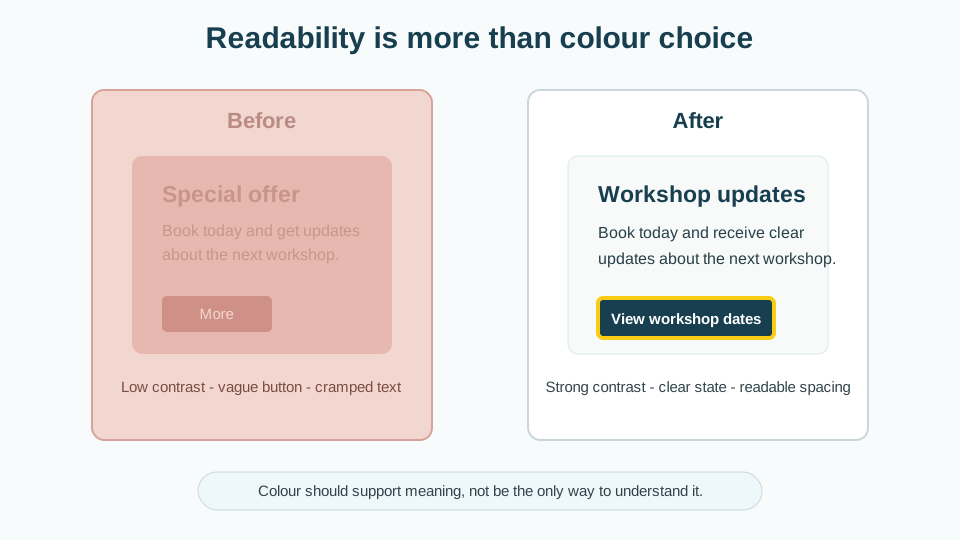
How and why this improves the card
- Text colour has stronger contrast against the background.
- Body text is larger and more comfortable to read.
- Line height gives the description room to breathe.
- The button text is more readable.
- The focus state is visible.
- The hover state is clear.
- The card spacing creates a stronger reading order.
Links need to look like links
Avoid styling links so subtly that users cannot find them.
Less helpful:
a {
  color: inherit;
  text-decoration: none;
}
Better for body content:
.prose a {
  color: #1d4ed8;
  text-decoration: underline;
  text-underline-offset: 0.15em;
}

.prose a:hover {
  text-decoration-thickness: 0.15em;
}

.prose a:focus-visible {
  outline: 3px solid #facc15;
  outline-offset: 3px;
}
Navigation links may be styled differently, although they still need clear hover and focus states.
Text over images
Text over images often causes contrast problems because the background changes across the image.
Risky:
<section class="hero-image">
  <h1>Build better websites</h1>
</section>
Better options:
- place text outside the image
- add a solid or semi-solid overlay
- use a consistent background panel behind the text
- choose a simpler image
- use CSS gradients carefully
Example:
.hero-content {
  max-width: 42rem;
  background: rgba(0, 0, 0, 0.75);
  color: #ffffff;
  padding: 1.5rem;
  border-radius: 0.75rem;
}
Check Your Understanding
Before moving forward, can you answer these?
- Why is colour alone not enough to communicate meaning?
- What does contrast affect?
- Why do links need visible styling?
- What can make text over images difficult?
- What should you test besides normal text colour?
Check Your Answers
- Some users cannot perceive colour differences reliably, so meaning also needs text, icons, labels, patterns, or structure.
- Contrast affects whether text, controls, links, and states can be comfortably seen and understood.
- Users need to recognise links as interactive text, especially when scanning or using different visual settings.
- Busy image detail, low contrast, and changing image colours can make overlaid text hard to read.
- Test hover, focus, disabled states, links, buttons, error states, zoom, line length, spacing, and mobile layouts.
How confident are you with this concept?
Still confused | Getting there | Got it | Could explain it to a friend
Guided Practice
Give learners a card component with low contrast text, tiny body copy, and a pale button. Ask them to:
Practice task
Give learners a card component with low contrast text, tiny body copy, and a pale button. Ask them to:
- increase text contrast
- improve line height
- improve spacing
- make the button easier to read
- add hover and focus states
- check the component at 200% zoom
Independent Practice
Learners choose one component from a previous project and complete:
Your Task:
# Readability review

## Component reviewed

## Text contrast issues

## Colour-only meaning issues

## Link and button state issues

## Spacing or line-height issues

## Changes made

## Testing notes
Accessibility testing task
- Run a contrast checker on text and buttons.
- Zoom the page to 200%.
- Check whether content overlaps or disappears.
- Use keyboard navigation and inspect focus states.
- Check whether colour is the only way meaning is communicated.
- View the page on a mobile-sized viewport.
Common mistakes
- Pale grey text on white backgrounds.
- Text over busy images.
- Removing underlines from body links.
- Hover states without focus states.
- Colour-only status messages.
- Tiny text in cards, captions, and footers.
- Very long line lengths.
- Treating accessibility-friendly design as visually dull.
Closure
Key Takeaways:
- explain why colour contrast matters
- avoid relying on colour alone
- improve readability with text size, line height, and spacing
- style link, hover, focus, and active states
- test contrast using browser tools or accessibility checkers
- adjust a component to be easier to read and use
Learning Objectives Review:
Look back at what you set out to learn. Can you now:
- explain why colour contrast matters Check!
- avoid relying on colour alone Got it!
- improve readability with text size, line height, and spacing Can explain it!
- style link, hover, focus, and active states Could teach this!
- test contrast using browser tools or accessibility checkers Check!
- adjust a component to be easier to read and use Got it!
If you can confidently answer "yes" to most of these, you're ready to move on!
Think & Reflect:
Pause and reflect
- Which idea from this lesson now feels practical rather than abstract?
- What would you build or test next to make this stick?
Looking Ahead:
Colour and contrast are more than decoration. They help people read and use the interface.
Good visual design helps people read, understand, decide, and act. If users have to squint, guess, or hunt, the design is working against them.
Next lesson
Next, learners should study ARIA: Use With Care.
Recommended Next Steps
Continue Learning
Ready to move forward? Continue with the next tutorial in this series:
ARIA: Use With CareRelated Topics
Explore these related tutorials to expand your knowledge:
Additional Resources
Deepen your understanding with these helpful resources:
- W3C WAI Fundamentals - Authoritative W3C guidance on why accessibility matters and how people with different disabilities use the web.
- W3C WAI Tutorials - Practical W3C tutorials for accessible page structure, menus, images, forms, and tables.
- Digital Accessibility Foundations Course - A free W3C course for technical and non-technical learners who want an end-to-end accessibility primer.
- MDN Web Docs: Accessibility - Developer-focused documentation covering semantic HTML, CSS, JavaScript, and WAI-ARIA basics.
- WebAIM - Plain-English articles, tutorials, and tools that bridge WCAG guidance and practical implementation.
- The A11Y Project - A community-driven guide that makes accessibility concepts easier to digest.
- The A11Y Project Accessibility Checklist - A useful checklist for checking accessibility basics as you work.
- Inclusive Design Principles - A framework for designing more inclusive user experiences from the start.
- WAVE Web Accessibility Evaluation Tool - A browser-based tool that overlays accessibility issues directly on a page.
- WebAIM Contrast Checker - A simple tool for testing WCAG colour contrast ratios.