Accessible Forms
Learn how labels, instructions, field grouping, and error messages make forms easier to complete.
Start Here
Forms are where websites ask users to do work.
That work might be simple: enter an email address. It might be stressful: apply for support, book a medical appointment, submit a payment, or report a problem.
A form is more than a collection of boxes. It is how the page asks for information and responds to the user.
Bad forms mumble. Good forms explain what they need, why they need it, and what went wrong when something needs fixing.
- Where have you already seen accessible forms in a real interface?
- Which part of this topic currently feels most important to test in a real page?
Learn how labels, instructions, field grouping, and error messages make forms easier to complete.
Learning Objectives
By the end of this lesson, you'll be able to:
- connect labels to form controls
- write helpful form instructions
- group related controls
- mark required fields clearly
- create useful error messages
- make form controls keyboard accessible
- test a form for basic accessibility issues
Why This Matters:
Learn how labels, instructions, field grouping, and error messages make forms easier to complete.
Prerequisites
Before you start:
Learners should understand:
- basic form elements
- labels and inputs
- buttons
- simple CSS
- keyboard testing
Core explanation
Forms need clear relationships between:
- labels and inputs
- instructions and fields
- error messages and fields
- grouped questions and their options
- submit buttons and form purpose
The most important habit is simple:
Every form control needs a clear label.
Labels
Best practice:
<label for="name">Name</label>
<input id="name" name="name" type="text">
The for attribute on the label matches the id on the input.
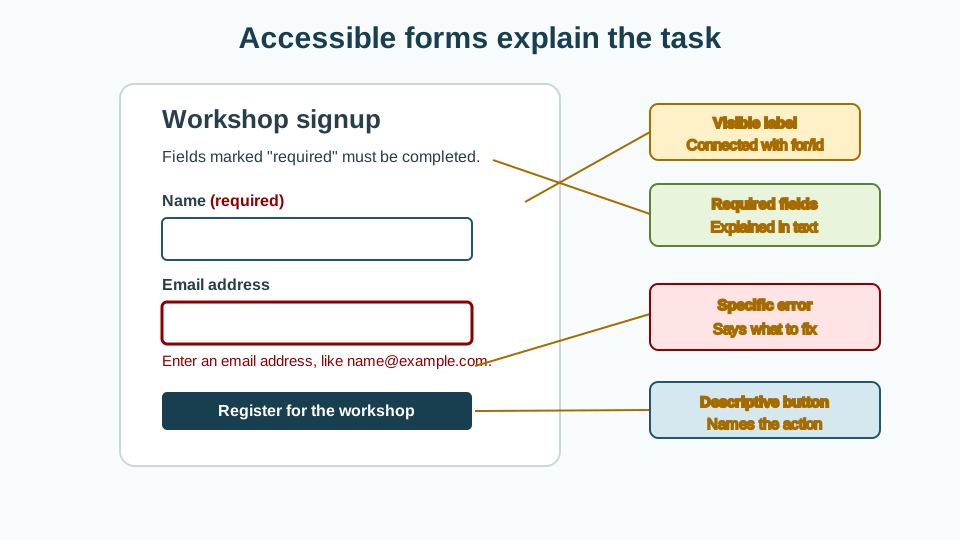
This gives users a visible label, helps assistive technology identify the field, and lets users click the label to focus the input.
Required fields
Do not rely only on colour or an asterisk with no explanation.
<p class="form-note">Fields marked with * are required.</p>

<label for="email">Email address *</label>
<input id="email" name="email" type="email" required>
You can also include the word "required" directly in the label:
<label for="email">Email address <span>(required)</span></label>Help text
Use help text when users need extra guidance.
<label for="password">Password</label>
<p id="password-help">Use at least 12 characters.</p>
<input
  id="password"
  name="password"
  type="password"
  aria-describedby="password-help"
>
aria-describedby connects the help text to the input.
Error messages
A useful error message should:
- identify the field
- explain the problem
- suggest how to fix it
Less helpful:
<p class="error">Invalid</p>Better:
<p id="email-error" class="error">Enter an email address in the format name@example.com.</p>Connected input:
<input
  id="email"
  name="email"
  type="email"
  required
  aria-describedby="email-error"
  aria-invalid="true"
>
Grouped controls
For related radio buttons or checkboxes, use fieldset and legend.
<fieldset>
  <legend>Preferred contact method</legend>

  <label>
    <input type="radio" name="contact-method" value="email">
    Email
  </label>

  <label>
    <input type="radio" name="contact-method" value="phone">
    Phone
  </label>
</fieldset>
The legend gives the group a label.
Starter code
<form class="contact-form">
  <div>
    <input type="text" placeholder="Name">
  </div>

  <div>
    <input type="email" placeholder="Email">
  </div>

  <div>
    <textarea placeholder="Message"></textarea>
  </div>

  <div>
    <p>Contact preference</p>
    <input type="radio" name="contact"> Email
    <input type="radio" name="contact"> Phone
  </div>

  <button>Send</button>
</form>
Improved code
<form class="contact-form" action="/contact" method="post">
  <p class="form-note">Fields marked with * are required.</p>

  <div class="form-field">
    <label for="name">Name *</label>
    <input id="name" name="name" type="text" autocomplete="name" required>
  </div>

  <div class="form-field">
    <label for="email">Email address *</label>
    <p id="email-help" class="field-help">Use the address you would like us to reply to.</p>
    <input
      id="email"
      name="email"
      type="email"
      autocomplete="email"
      aria-describedby="email-help"
      required
    >
  </div>

  <div class="form-field">
    <label for="message">Message *</label>
    <textarea id="message" name="message" rows="6" required></textarea>
  </div>

  <fieldset>
    <legend>Preferred contact method</legend>

    <label>
      <input type="radio" name="contact-method" value="email">
      Email
    </label>

    <label>
      <input type="radio" name="contact-method" value="phone">
      Phone
    </label>
  </fieldset>

  <button type="submit">Send message</button>
</form>
Supporting CSS
.contact-form {
  max-width: 42rem;
}

.form-field {
  margin-bottom: 1rem;
}

label,
legend {
  display: block;
  font-weight: 700;
  margin-bottom: 0.35rem;
}

input,
textarea,
select {
  width: 100%;
  max-width: 100%;
  font: inherit;
  padding: 0.65rem;
  border: 2px solid #737373;
  border-radius: 0.35rem;
}

fieldset {
  margin: 1.5rem 0;
  padding: 1rem;
  border: 2px solid #d4d4d4;
}

fieldset label {
  font-weight: 400;
}

.field-help,
.form-note {
  color: #404040;
}

.error {
  color: #991b1b;
  font-weight: 700;
}

input:focus-visible,
textarea:focus-visible,
button:focus-visible {
  outline: 3px solid #facc15;
  outline-offset: 3px;
}
How and why this improves the form
- Each field has a visible label.
- Each label is programmatically connected to the matching input.
- Required fields are explained.
- The email field has helpful instructions.
- Radio buttons are grouped with
fieldsetandlegend. - The submit button explains the action.
- Autocomplete hints support easier form completion.
- Keyboard users can move through the form predictably.
Error state example
<div class="form-field">
  <label for="email">Email address *</label>
  <p id="email-help" class="field-help">Use the address you would like us to reply to.</p>
  <p id="email-error" class="error">Enter an email address in the format name@example.com.</p>
  <input
    id="email"
    name="email"
    type="email"
    autocomplete="email"
    aria-describedby="email-help email-error"
    aria-invalid="true"
    required
  >
</div>
Check Your Understanding
Before moving forward, can you answer these?
- Why are visible labels better than placeholders?
- How do `for` and `id` connect labels to inputs?
- Why should required fields be explained in text?
- What makes an error message useful?
- Why use `fieldset` and `legend` for grouped choices?
Check Your Answers
- Visible labels stay available while users type, help everyone understand the field, and can be programmatically connected to inputs.
- The label for value must match the input id so activating the label focuses the correct input and assistive technology can announce it.
- Text instructions do not rely on colour or symbols alone and make expectations clearer before submission.
- A useful error identifies the problem, explains how to fix it, and appears near or connected to the relevant field.
- They give related controls, such as radio buttons, a shared question or context.
How confident are you with this concept?
Still confused | Getting there | Got it | Could explain it to a friend
Guided Practice
Give learners a newsletter signup form:
Practice task
Give learners a newsletter signup form:
<form>
  <input placeholder="Email">
  <button>Go</button>
</form>
Ask them to improve it with:
- a visible heading
- a visible label
- useful help text
- a clearer button label
- focus styles
Example result:
<form class="signup-form">
  <h2>Join the tutorial newsletter</h2>
  <p>Get new GraphiteEdge tutorials and project notes by email.</p>

  <label for="signup-email">Email address</label>
  <p id="signup-help">No spam. Just practical web learning notes.</p>
  <input
    id="signup-email"
    name="email"
    type="email"
    autocomplete="email"
    aria-describedby="signup-help"
    required
  >

  <button type="submit">Subscribe</button>
</form>
Independent Practice
Learners choose a form from a previous project and complete:
Your Task:
# Form accessibility review

## Does every field have a visible label?

## Are labels connected to inputs?

## Are required fields explained?

## Are related options grouped?

## Are errors clear and specific?

## Can the form be completed using only the keyboard?

## Fixes made
Accessibility testing task
- Click each label and confirm the correct field receives focus.
- Use only the keyboard to complete the form.
- Submit the form empty and inspect the error experience.
- Zoom the page to 200% and check readability.
- Check whether placeholder text disappears when typing.
- Confirm each field still makes sense after placeholder text disappears.
Common mistakes
- Using placeholders as the only labels.
- Writing vague errors such as "Invalid field".
- Marking fields as required using colour alone.
- Forgetting
type="submit"on submit buttons. - Not grouping radio buttons.
- Making tiny checkbox/radio click targets.
- Moving focus unexpectedly without explanation.
Closure
Key Takeaways:
- connect labels to form controls
- write helpful form instructions
- group related controls
- mark required fields clearly
- create useful error messages
- make form controls keyboard accessible
- test a form for basic accessibility issues
Learning Objectives Review:
Look back at what you set out to learn. Can you now:
- connect labels to form controls Check!
- write helpful form instructions Got it!
- group related controls Can explain it!
- mark required fields clearly Could teach this!
- create useful error messages Check!
- make form controls keyboard accessible Got it!
- test a form for basic accessibility issues Can explain it!
If you can confidently answer "yes" to most of these, you're ready to move on!
Think & Reflect:
Pause and reflect
- Which idea from this lesson now feels practical rather than abstract?
- What would you build or test next to make this stick?
Looking Ahead:
Accessible forms reduce friction. They help users understand what is being asked, complete the task, and recover when something goes wrong.
A good form does not make users feel as though they have failed an exam. It gives clear instructions and a fair path through.
Next lesson
Next, learners should study Colour, Contrast, and Readability.
Recommended Next Steps
Continue Learning
Ready to move forward? Continue with the next tutorial in this series:
Colour, Contrast, and ReadabilityRelated Topics
Explore these related tutorials to expand your knowledge:
Additional Resources
Deepen your understanding with these helpful resources:
- W3C WAI Fundamentals - Authoritative W3C guidance on why accessibility matters and how people with different disabilities use the web.
- W3C WAI Tutorials - Practical W3C tutorials for accessible page structure, menus, images, forms, and tables.
- Digital Accessibility Foundations Course - A free W3C course for technical and non-technical learners who want an end-to-end accessibility primer.
- MDN Web Docs: Accessibility - Developer-focused documentation covering semantic HTML, CSS, JavaScript, and WAI-ARIA basics.
- WebAIM - Plain-English articles, tutorials, and tools that bridge WCAG guidance and practical implementation.
- The A11Y Project - A community-driven guide that makes accessibility concepts easier to digest.
- The A11Y Project Accessibility Checklist - A useful checklist for checking accessibility basics as you work.
- Inclusive Design Principles - A framework for designing more inclusive user experiences from the start.
- WAVE Web Accessibility Evaluation Tool - A browser-based tool that overlays accessibility issues directly on a page.
- WebAIM Contrast Checker - A simple tool for testing WCAG colour contrast ratios.