Images, Alt Text, and Meaning
Learn how to write useful text alternatives by asking what an image is doing on the page.
Start Here
Alt text is not a caption. It is not a file name. It is not a secret SEO stuffing drawer where keywords go to breed.
Alt text is a text alternative for an image when the image cannot be seen or loaded.
The important question is not:
What does this image look like?
The better question is:
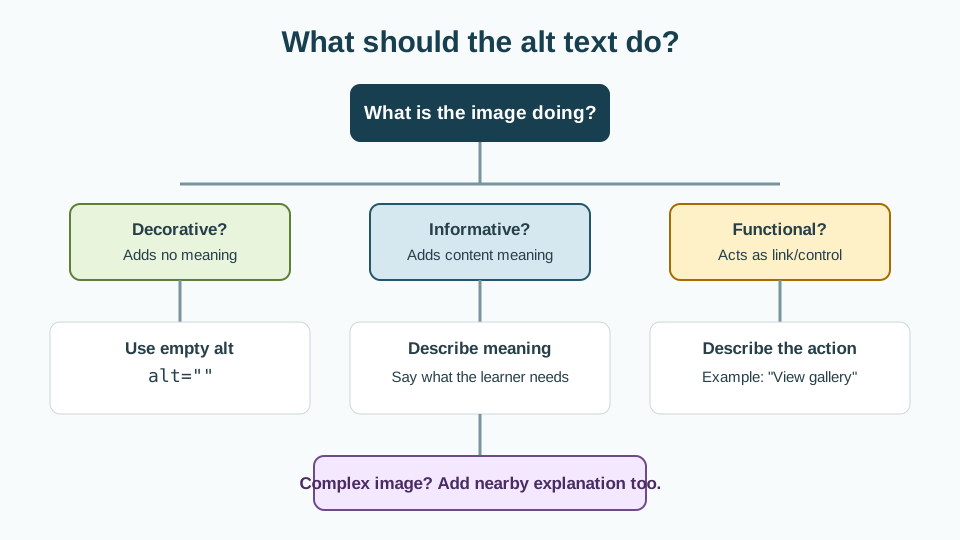
What job is this image doing here?
The same image might need different alt text in different contexts. A photo of a chocolate cake could be decorative on a café homepage, informative in a menu, or functional if it is the linked image that opens a recipe.
Context decides the alt text.
- Where have you already seen images, alt text, and meaning in a real interface?
- Which part of this topic currently feels most important to test in a real page?
Learn how to write useful text alternatives by asking what an image is doing on the page.
Learning Objectives
By the end of this lesson, you'll be able to:
- explain what alt text is for
- identify decorative, informative, functional, and complex images
- write appropriate alt text for common image types
- use empty alt text correctly for decorative images
- avoid common alt text mistakes
- test whether page content still makes sense without images
Why This Matters:
Learn how to write useful text alternatives by asking what an image is doing on the page.
Prerequisites
Before you start:
Learners should understand:
- the
imgelement - the
altattribute - basic page content structure
- links and buttons
Core explanation
The alt attribute provides an alternative when an image is not available visually.
<img src="coffee-cup.jpg" alt="Cup of coffee beside a notebook">Every meaningful img element needs an alt attribute. Sometimes the correct value is descriptive text. Sometimes the correct value is empty:
<img src="decorative-divider.svg" alt="">An empty alt tells assistive technology that the image can be ignored.
Leaving the alt attribute out is different. Missing alt can cause assistive technology to announce the file name, which is rarely useful unless your file names are oddly poetic.
Image types
Decorative images
Decorative images do not add information. They may create atmosphere, spacing, or visual style.
Example:
<img src="gold-divider.svg" alt="">Use empty alt text:
alt=""Do not write:
alt="Decorative gold divider"That adds noise.
Informative images
Informative images communicate something useful.
Example:
<img
  src="webpage-layout-diagram.svg"
  alt="Diagram showing a webpage divided into header, main content, sidebar, and footer sections"
>
The alt text should convey the image's meaning, not every visual detail.
Functional images
Functional images perform an action, often inside a link or button.
Example:
<a href="/cart.html">
  <img src="cart-icon.svg" alt="View cart">
</a>
The alt text should describe the action or destination, not the object.
Better:
alt="View cart"Less useful:
alt="Shopping cart icon"Complex images
Complex images include charts, diagrams, maps, infographics, or screenshots where a short phrase is not enough.
Use:
- concise alt text
- nearby explanation
- data table where appropriate
- figure and figcaption if useful
Example:
<figure>
  <img
    src="traffic-sources-chart.svg"
    alt="Bar chart comparing website traffic sources"
  >
  <figcaption>
    Organic search was the largest traffic source, followed by direct visits and social referrals.
  </figcaption>
</figure>
Starter code
<section class="menu-preview">
  <h2>Today’s specials</h2>

  <article class="menu-card">
    <img src="barramundi.jpg">
    <h3>Grilled barramundi</h3>
    <p>Served with lemon myrtle butter and roasted vegetables.</p>
  </article>

  <article class="menu-card">
    <img src="divider.svg">
    <h3>Chocolate tart</h3>
    <p>Dark chocolate tart with raspberry compote.</p>
  </article>

  <a href="/bookings.html">
    <img src="calendar-icon.svg">
  </a>
</section>
Improved code
<section class="menu-preview" aria-labelledby="specials-heading">
  <h2 id="specials-heading">Today’s specials</h2>

  <article class="menu-card">
    <img
      src="barramundi.jpg"
      alt="Grilled barramundi served with roasted vegetables"
    >
    <h3>Grilled barramundi</h3>
    <p>Served with lemon myrtle butter and roasted vegetables.</p>
  </article>

  <article class="menu-card">
    <img src="divider.svg" alt="">
    <h3>Chocolate tart</h3>
    <p>Dark chocolate tart with raspberry compote.</p>
  </article>

  <a href="/bookings.html">
    <img src="calendar-icon.svg" alt="Book a table">
  </a>
</section>
How and why this improves the page
- The food image has alt text because it helps identify the dish visually shown.
- The divider image is decorative, so it uses
alt="". - The linked calendar icon uses alt text describing the link purpose: "Book a table".
- The section has an accessible label connected to its heading.
- Users who cannot see the images still get the relevant meaning.
Writing better alt text
Use these prompts:
- Why is the image here?
- What would someone miss if the image disappeared?
- Is the same information already in nearby text?
- Is the image decorative, informative, functional, or complex?
- What is the shortest useful alternative?
Examples
Decorative hero background
<img src="abstract-shapes.svg" alt="">Informative team photo
<img
  src="team-at-workshop.jpg"
  alt="Three workshop facilitators standing beside a table of web design materials"
>
Functional icon link
<a href="/downloads/accessibility-checklist.pdf">
  <img src="download-icon.svg" alt="Download accessibility checklist">
</a>
Logo
If the logo links to the homepage:
<a href="/">
  <img src="logo.svg" alt="GraphiteEdge home">
</a>
If the site name appears next to the logo:
<a href="/">
  <img src="logo-mark.svg" alt="">
  <span>GraphiteEdge</span>
</a>
Check Your Understanding
Before moving forward, can you answer these?
- What is the purpose of alt text?
- When should an image use `alt=""`?
- Why is `alt="image"` unhelpful?
- How should alt text change for image links?
- Why does context matter?
Check Your Answers
- Alt text preserves the meaning or function of an image when the image cannot be seen or loaded.
- Use empty alt text when an image is decorative and adds no information or function beyond nearby content.
- It only says that an image exists. It does not explain the image meaning, purpose, or action.
- For linked images, describe the action or destination, such as View photo gallery, rather than only describing the image appearance.
- The same image can serve different purposes on different pages, so useful alt text depends on what the image contributes in that specific context.
How confident are you with this concept?
Still confused | Getting there | Got it | Could explain it to a friend
Guided Practice
Give learners these image contexts and ask them to write alt text:
Practice task
Give learners these image contexts and ask them to write alt text:
- A decorative wave graphic between sections.
- A photo of a finished website layout in a tutorial about visual hierarchy.
- A linked Instagram icon in a footer.
- A screenshot showing an error message in VS Code.
- A chart comparing three traffic sources.
Suggested answers:
alt=""alt="Finished website layout showing a large hero section followed by three content cards"alt="Visit us on Instagram"alt="VS Code terminal showing a missing dependency error"alt="Chart comparing organic search, direct visits, and social traffic"
Independent Practice
Learners audit one existing project and create an image inventory:
Your Task:
# Image inventory

| Image | Purpose | Type | Current alt | Recommended alt |
|---|---|---|---|---|
| hero.jpg | Sets mood | Decorative | missing | alt="" |
| menu-card.jpg | Shows dish | Informative | "food" | "Grilled barramundi with roasted vegetables" |
Accessibility testing task
- Temporarily disable images in the browser, or imagine each image is unavailable.
- Read the page content.
- Check whether meaning is lost.
- Inspect each
imgelement. - Confirm every image has an
altattribute. - Confirm decorative images use empty alt text.
Common mistakes
- Writing
alt="image". - Writing file names as alt text.
- Stuffing alt text with keywords.
- Describing decorative images that should be ignored.
- Describing an icon's appearance instead of its function.
- Making alt text too long when nearby content already explains the image.
- Forgetting that SVGs and icons also need accessible treatment when meaningful.
Closure
Key Takeaways:
- explain what alt text is for
- identify decorative, informative, functional, and complex images
- write appropriate alt text for common image types
- use empty alt text correctly for decorative images
- avoid common alt text mistakes
- test whether page content still makes sense without images
Learning Objectives Review:
Look back at what you set out to learn. Can you now:
- explain what alt text is for Check!
- identify decorative, informative, functional, and complex images Got it!
- write appropriate alt text for common image types Can explain it!
- use empty alt text correctly for decorative images Could teach this!
- avoid common alt text mistakes Check!
- test whether page content still makes sense without images Got it!
If you can confidently answer "yes" to most of these, you're ready to move on!
Think & Reflect:
Pause and reflect
- Which idea from this lesson now feels practical rather than abstract?
- What would you build or test next to make this stick?
Looking Ahead:
Good alt text is not about describing every pixel. It is about preserving meaning.
Ask what the image is doing. Then write the shortest useful alternative for that job.
Next lesson
Next, learners should study Keyboard Navigation and Focus States.
Recommended Next Steps
Continue Learning
Ready to move forward? Continue with the next tutorial in this series:
Keyboard Navigation and Focus StatesRelated Topics
Explore these related tutorials to expand your knowledge:
Additional Resources
Deepen your understanding with these helpful resources:
- W3C WAI Fundamentals - Authoritative W3C guidance on why accessibility matters and how people with different disabilities use the web.
- W3C WAI Tutorials - Practical W3C tutorials for accessible page structure, menus, images, forms, and tables.
- Digital Accessibility Foundations Course - A free W3C course for technical and non-technical learners who want an end-to-end accessibility primer.
- MDN Web Docs: Accessibility - Developer-focused documentation covering semantic HTML, CSS, JavaScript, and WAI-ARIA basics.
- WebAIM - Plain-English articles, tutorials, and tools that bridge WCAG guidance and practical implementation.
- The A11Y Project - A community-driven guide that makes accessibility concepts easier to digest.
- The A11Y Project Accessibility Checklist - A useful checklist for checking accessibility basics as you work.
- Inclusive Design Principles - A framework for designing more inclusive user experiences from the start.
- WAVE Web Accessibility Evaluation Tool - A browser-based tool that overlays accessibility issues directly on a page.
- WebAIM Contrast Checker - A simple tool for testing WCAG colour contrast ratios.