Keyboard Navigation and Focus States
Learn how to make pages usable without a mouse by testing keyboard navigation, fixing focus styles, and avoiding keyboard traps.
Start Here
A mouse is convenient. It is not universal.
Some people navigate with a keyboard because of disability. Some use keyboard shortcuts because they are faster. Some use switch devices, voice control, or other assistive technologies that depend on keyboard-like focus behaviour.
If your page only works when someone can point and click, the page is quietly making assumptions.
Keyboard testing is one of the simplest accessibility habits you can build. Put the mouse aside. Press Tab. Your page will start telling you the truth.
Sometimes rudely.
- Where have you already seen keyboard navigation and focus states in a real interface?
- Which part of this topic currently feels most important to test in a real page?
Learn how to make pages usable without a mouse by testing keyboard navigation, fixing focus styles, and avoiding keyboard traps.
Learning Objectives
By the end of this lesson, you'll be able to:
- explain keyboard focus
- test a page using only the keyboard
- identify missing or confusing focus states
- create visible `:focus-visible` styles
- add a skip link
- avoid keyboard traps
- understand why native interactive elements matter
Why This Matters:
Learn how to make pages usable without a mouse by testing keyboard navigation, fixing focus styles, and avoiding keyboard traps.
Prerequisites
Before you start:
Learners should understand:
- semantic HTML
- links and buttons
- basic CSS pseudo-classes
- simple navigation markup
Core explanation
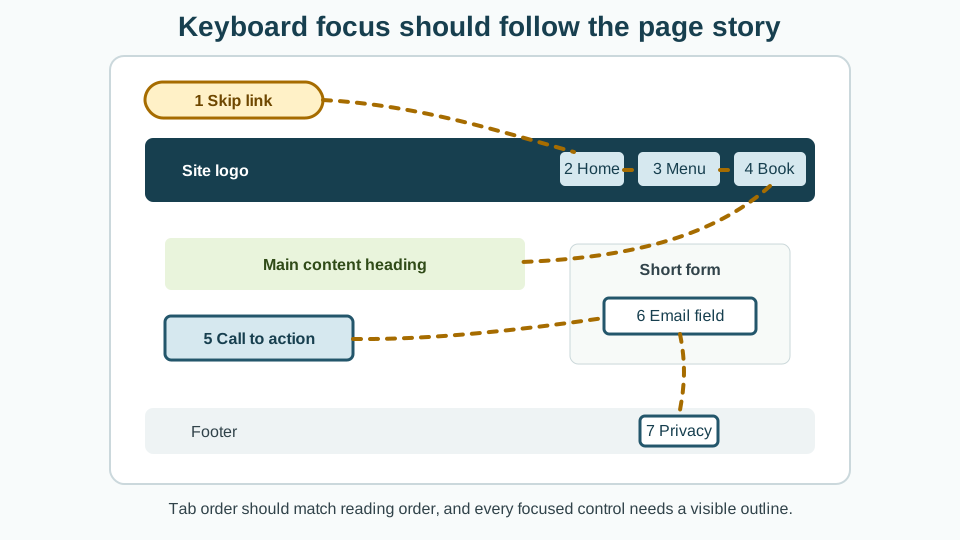
Keyboard users move through interactive elements using focus.
Common keyboard interactions:
Tab: move to the next focusable elementShift + Tab: move to the previous focusable elementEnter: activate links and buttonsSpace: activate buttons and checkboxes- arrow keys: move within some controls such as radio groups or menus
Focusable elements include:
- links with
href - buttons
- form controls
- summary elements
- elements with appropriate
tabindex, used carefully
A page should have a logical focus order that follows the visual and document structure.
Visible focus
When an element receives keyboard focus, users need to see where they are.
Do not remove outlines unless you replace them with a clear alternative.
Bad:
*:focus {
  outline: none;
}
Better:
:focus-visible {
  outline: 3px solid #facc15;
  outline-offset: 3px;
}
You can style focus to match a brand, as long as it remains obvious.
Skip links
A skip link lets keyboard users bypass repeated navigation and jump to the main content.
<a class="skip-link" href="#main-content">Skip to main content</a>

<header>
  <!-- repeated navigation -->
</header>

<main id="main-content">
  <h1>Keyboard Navigation and Focus States</h1>
</main>
.skip-link {
position: absolute;
left: 1rem;
top: 1rem;
transform: translateY(-150%);
background: #ffffff;
color: #111111;
padding: 0.75rem 1rem;
border: 2px solid currentColor;
z-index: 100;
}
.skip-link:focus {
transform: translateY(0);
}The link is visually hidden until focused. When keyboard users press Tab, it appears.
Starter code
<header class="site-header">
  <div class="logo">Coastal Studio</div>

  <div class="nav">
    <span>Home</span>
    <span>Services</span>
    <span>Contact</span>
  </div>
</header>

<main>
  <section class="hero">
    <h1>Design support for small businesses</h1>
    <div class="cta" onclick="location.href='/contact.html'">
      Book a consult
    </div>
  </section>
</main>
.nav span,
.cta {
cursor: pointer;
}
.cta {
display: inline-block;
padding: 0.75rem 1rem;
background: #222;
color: white;
}
a:focus,
button:focus {
outline: none;
}Improved code
<a class="skip-link" href="#main-content">Skip to main content</a>

<header class="site-header">
  <a class="logo" href="/">Coastal Studio</a>

  <nav aria-label="Main navigation">
    <ul class="nav-list">
      <li><a href="/">Home</a></li>
      <li><a href="/services.html">Services</a></li>
      <li><a href="/contact.html">Contact</a></li>
    </ul>
  </nav>
</header>

<main id="main-content">
  <section class="hero">
    <h1>Design support for small businesses</h1>
    <a class="button" href="/contact.html">Book a consult</a>
  </section>
</main>
.skip-link {
position: absolute;
left: 1rem;
top: 1rem;
transform: translateY(-150%);
background: #ffffff;
color: #111111;
padding: 0.75rem 1rem;
border: 2px solid currentColor;
z-index: 100;
}
.skip-link:focus {
transform: translateY(0);
}
.nav-list {
display: flex;
gap: 1rem;
list-style: none;
padding: 0;
}
.button {
display: inline-block;
padding: 0.75rem 1rem;
background: #222;
color: #ffffff;
text-decoration: none;
border-radius: 0.4rem;
}
a:focus-visible,
button:focus-visible,
input:focus-visible,
textarea:focus-visible,
select:focus-visible {
outline: 3px solid #facc15;
outline-offset: 3px;
}How and why this improves the page
- Navigation items are real links.
- The call-to-action is a real link.
- Keyboard users can tab through the interface.
- Focus is visible.
- The skip link gives users a shortcut to main content.
- The focus order follows the document structure.
- No JavaScript is needed for basic navigation.
Keyboard testing checklist
Ask learners to test:
- Can I see where focus is?
- Does focus move in a logical order?
- Can I reach every link, button, and form field?
- Can I activate links with
Enter? - Can I activate buttons with
EnterorSpace? - Can I skip repeated navigation?
- Does anything trap focus?
- Does focus disappear behind overlays or hidden elements?
- Does the page work without a mouse?
About tabindex
Use tabindex carefully.
<div tabindex="0">Focusable content</div>This makes an element focusable, although it does not give it button or link behaviour.
Avoid positive tabindex values:
<div tabindex="5">Avoid this</div>Positive values create a custom focus order that can become confusing and hard to maintain.
General guidance:
- Prefer native interactive elements.
- Use
tabindex="0"sparingly. - Use
tabindex="-1"when you need to move focus programmatically. - Avoid
tabindexas a patch for poor HTML structure.
Check Your Understanding
Before moving forward, can you answer these?
- Why does visible focus matter?
- What does a skip link do?
- Why are clickable `div`s risky?
- What keys should you use in a basic keyboard test?
- Why should positive `tabindex` usually be avoided?
Check Your Answers
- Visible focus shows keyboard users where they are on the page and what will activate next.
- A skip link lets keyboard users bypass repeated navigation and jump directly to the main content.
- They are not naturally focusable or keyboard-operable and are not announced as controls without extra work.
- Use Tab, Shift + Tab, Enter, Space, Escape where relevant, and arrow keys for widgets that expect arrow-key behaviour.
- Positive tabindex creates a custom focus order that can confuse users and become hard to maintain.
How confident are you with this concept?
Still confused | Getting there | Got it | Could explain it to a friend
Guided Practice
Give learners a simple navigation bar where links are styled as spans. Ask them to:
Practice task
Give learners a simple navigation bar where links are styled as spans. Ask them to:
- convert navigation items to links
- add a skip link
- add visible focus styles
- test the page with keyboard only
- write down the focus order
Independent Practice
Learners choose one previous project and complete this report:
Your Task:
# Keyboard test report

## Page tested

## Can all controls be reached?

## Is focus visible?

## Does the focus order make sense?

## Is there a skip link?

## Problems found

## Fixes made
Accessibility testing task
Use the "mouse exile" test:
- Move the mouse away.
- Navigate the full page using only the keyboard.
- Complete the main task on the page.
- Record where you get stuck, lost, or confused.
- Fix one issue and test again.
Common mistakes
- Removing outlines globally.
- Making only hover states, not focus states.
- Using
divorspanas buttons. - Creating custom controls without keyboard support.
- Hiding focus behind sticky headers.
- Forgetting skip links on pages with repeated navigation.
- Assuming tab order is correct because the visual layout looks right.
Closure
Key Takeaways:
- explain keyboard focus
- test a page using only the keyboard
- identify missing or confusing focus states
- create visible `:focus-visible` styles
- add a skip link
- avoid keyboard traps
- understand why native interactive elements matter
Learning Objectives Review:
Look back at what you set out to learn. Can you now:
- explain keyboard focus Check!
- test a page using only the keyboard Got it!
- identify missing or confusing focus states Can explain it!
- create visible `:focus-visible` styles Could teach this!
- add a skip link Check!
- avoid keyboard traps Got it!
- understand why native interactive elements matter Can explain it!
If you can confidently answer "yes" to most of these, you're ready to move on!
Think & Reflect:
Pause and reflect
- Which idea from this lesson now feels practical rather than abstract?
- What would you build or test next to make this stick?
Looking Ahead:
Keyboard testing is wonderfully low-tech. No account, plugin, subscription, moon phase, or ceremonial candle required.
Press Tab. Watch what happens. Fix what breaks.
Next lesson
Next, learners should study Accessible Forms.
Recommended Next Steps
Continue Learning
Ready to move forward? Continue with the next tutorial in this series:
Accessible FormsRelated Topics
Explore these related tutorials to expand your knowledge:
Additional Resources
Deepen your understanding with these helpful resources:
- W3C WAI Fundamentals - Authoritative W3C guidance on why accessibility matters and how people with different disabilities use the web.
- W3C WAI Tutorials - Practical W3C tutorials for accessible page structure, menus, images, forms, and tables.
- Digital Accessibility Foundations Course - A free W3C course for technical and non-technical learners who want an end-to-end accessibility primer.
- MDN Web Docs: Accessibility - Developer-focused documentation covering semantic HTML, CSS, JavaScript, and WAI-ARIA basics.
- WebAIM - Plain-English articles, tutorials, and tools that bridge WCAG guidance and practical implementation.
- The A11Y Project - A community-driven guide that makes accessibility concepts easier to digest.
- The A11Y Project Accessibility Checklist - A useful checklist for checking accessibility basics as you work.
- Inclusive Design Principles - A framework for designing more inclusive user experiences from the start.
- WAVE Web Accessibility Evaluation Tool - A browser-based tool that overlays accessibility issues directly on a page.
- WebAIM Contrast Checker - A simple tool for testing WCAG colour contrast ratios.