Semantic HTML: The First Accessibility Tool
Learn how native HTML elements give pages meaning before CSS, JavaScript, or ARIA enter the room.
Start Here
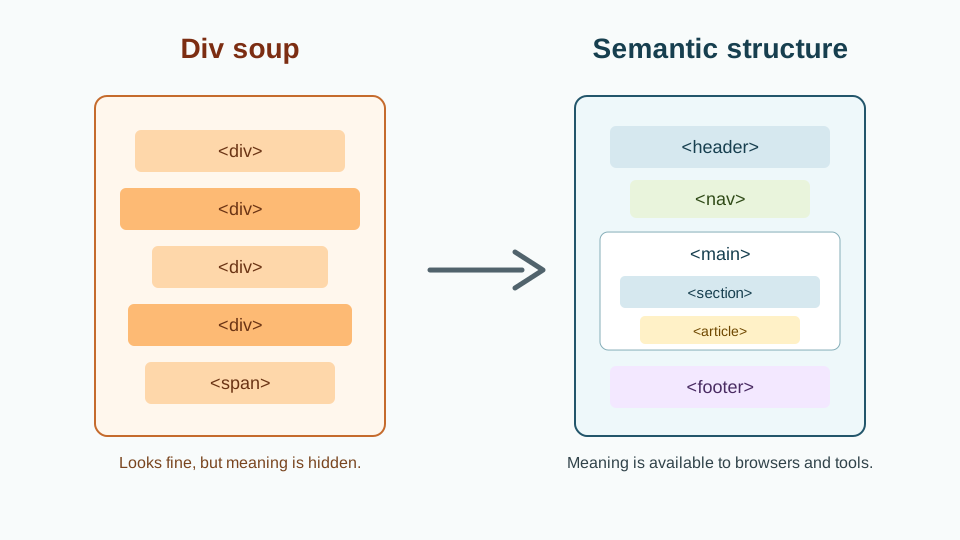
A webpage made only from div and span elements can look perfectly fine.
To a browser, a screen reader, a search engine, a keyboard user, and the poor developer who inherits the project six months later, that same page may be a bowl of unlabelled spaghetti.
Semantic HTML is how we tell the browser what things are, not only how they should look.
A heading is not just large bold text. A button is not just a rectangle. A navigation menu is not just links sitting near each other.
HTML already has meaning built in. Accessibility often begins by using that meaning properly.
- Where have you already seen semantic html: the first accessibility tool in a real interface?
- Which part of this topic currently feels most important to test in a real page?
Learn how native HTML elements give pages meaning before CSS, JavaScript, or ARIA enter the room.
Learning Objectives
By the end of this lesson, you'll be able to:
- define semantic HTML
- choose appropriate elements for common page sections
- explain the difference between links and buttons
- create a logical heading structure
- use landmarks such as `header`, `nav`, `main`, and `footer`
- refactor non-semantic markup into accessible structure
Why This Matters:
Learn how native HTML elements give pages meaning before CSS, JavaScript, or ARIA enter the room.
Prerequisites
Before you start:
Learners should understand:
- basic HTML document structure
- headings and paragraphs
- links and images
- simple CSS classes
Core explanation
Semantic HTML means using HTML elements according to their meaning.
For example:
- Use
h1toh6for headings. - Use
pfor paragraphs. - Use
ul,ol, andlifor lists. - Use
afor links to another page, section, file, or URL. - Use
buttonfor actions that happen on the current page. - Use
navfor major navigation. - Use
mainfor the main content of the page. - Use
form,label,input, andbuttonfor forms.
When you use the correct element, the browser gives you useful behaviour for free.
A real button:
- can receive keyboard focus
- can be activated with keyboard controls
- is announced as a button by assistive technology
- works with forms and JavaScript event handling
A div with a click event does none of that automatically.
HTML is not only the box the design arrives in. HTML is the document's structure.
Page landmarks
Landmarks help users understand and move through a page.
Common landmarks include:
<header>
  <!-- Introductory page or site content -->
</header>

<nav aria-label="Main navigation">
  <!-- Major navigation links -->
</nav>

<main>
  <!-- Unique main content for this page -->
</main>

<aside>
  <!-- Related supporting content -->
</aside>

<footer>
  <!-- Footer content -->
</footer>
A typical page should have one main main element. This helps assistive technology identify the primary content.
Heading order
Headings create an outline.
A good structure:
<h1>Accessibility Essentials</h1>

<h2>Semantic HTML</h2>
<h3>Page landmarks</h3>
<h3>Heading order</h3>

<h2>Keyboard navigation</h2>
<h3>Focus states</h3>
A confusing structure:
<h1>Accessibility Essentials</h1>
<h4>Semantic HTML</h4>
<h2>Page landmarks</h2>
<h6>Heading order</h6>
Do not choose headings based on visual size. Choose headings based on structure, then style them with CSS.
Links vs buttons
This distinction matters.
Use a link when the user goes somewhere:
<a href="/tutorials/accessibility/">View accessibility tutorials</a>Use a button when the user does something on the current page:
<button type="button">Open menu</button>A useful test:
- "Go to..." usually means a link.
- "Do something..." usually means a button.
Examples:
| Task | Better element |
|---|---|
| Go to contact page | a |
| Download a PDF | a |
| Submit a form | button type="submit" |
| Open a modal | button |
| Toggle navigation | button |
| Jump to a page section | a |
Starter code
<div class="page">
  <div class="top">
    <div class="brand">Black Swan Bistro</div>
    <div class="nav">
      <div>Home</div>
      <div>Menu</div>
      <div>Bookings</div>
    </div>
  </div>

  <div class="content">
    <div class="title">Modern Australian dining</div>
    <div class="subtitle">Seasonal food, local produce, relaxed evenings.</div>
    <div class="cta">Book a table</div>

    <div class="section-title">Today’s specials</div>
    <div class="card">
      <div class="card-title">Grilled barramundi</div>
      <div>Served with lemon myrtle butter.</div>
    </div>
  </div>

  <div class="bottom">
    Copyright Black Swan Bistro
  </div>
</div>
Improved code
<header class="site-header">
<a class="site-logo" href="/">Black Swan Bistro</a>
<nav aria-label="Main navigation">
<ul class="nav-list">
<li><a href="/">Home</a></li>
<li><a href="/menu.html">Menu</a></li>
<li><a href="/bookings.html">Bookings</a></li>
</ul>
</nav>
</header>
<main>
<section class="hero">
<h1>Modern Australian dining</h1>
<p>Seasonal food, local produce, relaxed evenings.</p>
<a class="button" href="/bookings.html">Book a table</a>
</section>
<section aria-labelledby="specials-heading">
<h2 id="specials-heading">Today’s specials</h2>
<article class="card">
<h3>Grilled barramundi</h3>
<p>Served with lemon myrtle butter.</p>
</article>
</section>
</main>
<footer class="site-footer">
<p>© Black Swan Bistro</p>
</footer>Supporting CSS
body {
  margin: 0;
  font-family: system-ui, sans-serif;
  line-height: 1.6;
}

.site-header,
.site-footer {
  padding: 1rem;
  background: #161616;
  color: #ffffff;
}

.site-logo,
.site-header a {
  color: #ffffff;
}

.nav-list {
  display: flex;
  gap: 1rem;
  padding: 0;
  list-style: none;
}

main {
  padding: 2rem;
}

.hero {
  max-width: 60rem;
  margin-bottom: 2rem;
}

.button {
  display: inline-block;
  padding: 0.75rem 1rem;
  background: #7c2d12;
  color: #ffffff;
  text-decoration: none;
  border-radius: 0.4rem;
}

.button:focus-visible {
  outline: 3px solid #facc15;
  outline-offset: 3px;
}

.card {
  padding: 1rem;
  border: 1px solid #d4d4d4;
  border-radius: 0.5rem;
}
How and why this improves the page
The improved version gives the page a meaningful structure:
headeridentifies introductory site content.- The logo is a real link back to the home page.
navidentifies the main navigation.- The navigation items are real links inside a list.
mainidentifies the main content of the page.h1,h2, andh3create a clear heading structure.sectiongroups related content.articleidentifies a self-contained content card.- The booking call-to-action is a link because it moves users to another page.
footeridentifies the closing site information.
The CSS handles visual presentation. The HTML handles meaning.
That separation is one of the saner parts of the web. We should enjoy it while we can.
Check Your Understanding
Before moving forward, can you answer these?
- What makes HTML semantic?
- Why is a `button` different from a link?
- Why should headings not be chosen only for visual size?
- Why does a page usually need one `main` element?
- What problem does a clickable `div` create?
Check Your Answers
- Semantic HTML uses elements according to their meaning, such as headings for headings, nav for navigation, main for main content, and button for actions.
- A link takes users somewhere, while a button performs an action on the current page or submits a form. They also have different built-in behaviours.
- Headings create the document outline. Choose them for structure first, then use CSS to control appearance.
- One main element identifies the unique primary content of the page for browsers and assistive technologies.
- A clickable div lacks native keyboard support, role, focus behaviour, and accessible semantics unless you rebuild all of that yourself.
How confident are you with this concept?
Still confused | Getting there | Got it | Could explain it to a friend
Guided Practice
Refactor this snippet:
Practice task
Refactor this snippet:
<div class="product">
  <div class="product-name">Starter Website Review</div>
  <div class="product-text">A practical review of your homepage structure, SEO basics, and accessibility issues.</div>
  <div class="product-link">Learn more</div>
</div>
Expected direction:
<article class="product">
  <h2>Starter Website Review</h2>
  <p>A practical review of your homepage structure, SEO basics, and accessibility issues.</p>
  <a href="/services/starter-review.html">Learn more about Starter Website Review</a>
</article>
Independent Practice
Ask learners to open a previous project and find:
Your Task:
- one area where a
divshould become a landmark - one fake button or fake link
- one heading structure problem
- one place where a list would be more meaningful
- one place where a card could use
article
Then write a before-and-after code snippet.
Accessibility testing task
In the browser:
- Open the page.
- Use the headings panel in a browser extension or accessibility tool.
- Check whether the headings create a sensible outline.
- Use keyboard navigation to move through links and buttons.
- Confirm that focus appears in a logical order.
Common mistakes
- Using
divfor everything. - Using headings because of size instead of structure.
- Making clickable cards without proper links.
- Using
buttonfor navigation. - Using
a href="#"for actions. - Adding ARIA roles to elements when native HTML would be clearer.
Closure
Key Takeaways:
- define semantic HTML
- choose appropriate elements for common page sections
- explain the difference between links and buttons
- create a logical heading structure
- use landmarks such as `header`, `nav`, `main`, and `footer`
- refactor non-semantic markup into accessible structure
Learning Objectives Review:
Look back at what you set out to learn. Can you now:
- define semantic HTML Check!
- choose appropriate elements for common page sections Got it!
- explain the difference between links and buttons Can explain it!
- create a logical heading structure Could teach this!
- use landmarks such as `header`, `nav`, `main`, and `footer` Check!
- refactor non-semantic markup into accessible structure Got it!
If you can confidently answer "yes" to most of these, you're ready to move on!
Think & Reflect:
Pause and reflect
- Which idea from this lesson now feels practical rather than abstract?
- What would you build or test next to make this stick?
Looking Ahead:
Semantic HTML is accessibility's first power tool. It gives the browser a map of the page before we ask CSS to dress it up or JavaScript to make it dance.
Good structure does not solve every accessibility problem. It does prevent many unnecessary ones.
Next lesson
Next, learners should study Images, Alt Text, and Meaning.
Recommended Next Steps
Continue Learning
Ready to move forward? Continue with the next tutorial in this series:
Images, Alt Text, and MeaningRelated Topics
Explore these related tutorials to expand your knowledge:
Additional Resources
Deepen your understanding with these helpful resources:
- W3C WAI Fundamentals - Authoritative W3C guidance on why accessibility matters and how people with different disabilities use the web.
- W3C WAI Tutorials - Practical W3C tutorials for accessible page structure, menus, images, forms, and tables.
- Digital Accessibility Foundations Course - A free W3C course for technical and non-technical learners who want an end-to-end accessibility primer.
- MDN Web Docs: Accessibility - Developer-focused documentation covering semantic HTML, CSS, JavaScript, and WAI-ARIA basics.
- WebAIM - Plain-English articles, tutorials, and tools that bridge WCAG guidance and practical implementation.
- The A11Y Project - A community-driven guide that makes accessibility concepts easier to digest.
- The A11Y Project Accessibility Checklist - A useful checklist for checking accessibility basics as you work.
- Inclusive Design Principles - A framework for designing more inclusive user experiences from the start.
- WAVE Web Accessibility Evaluation Tool - A browser-based tool that overlays accessibility issues directly on a page.
- WebAIM Contrast Checker - A simple tool for testing WCAG colour contrast ratios.