Updates, Backups, and Version Control
Understand how updates, backups, and version control protect a website from avoidable disasters.
Start Here
Updates are necessary. Updates can also break things.
Both statements are true, which is deeply annoying and very web development.
A healthy website needs updates, backups, and version control. These three ideas work together, but they are not the same thing.
- What part of this site would matter most if it broke?
- Where would you look first if the live version behaved differently from your local version?
This section follows deployment because launch is the start of a live website's working life, not the end of the project.
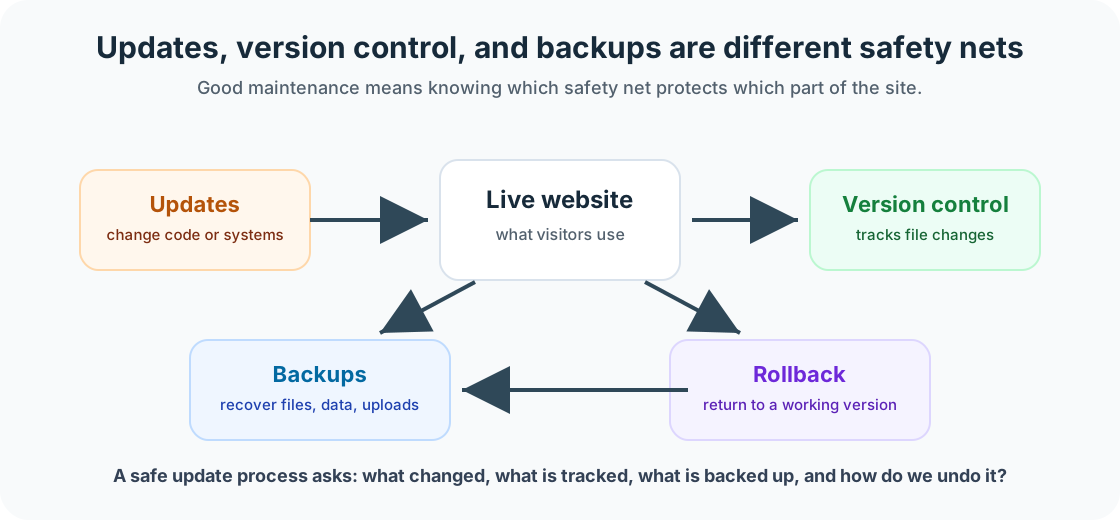
Updates keep software current. Backups help recover lost data or files. Version control tracks changes to code and content files. When used well, they give you options. And options are very handy when a website suddenly decides to become abstract art.
Learning Objectives
By the end of this lesson, you'll be able to:
- Explain why updates need to be tested
- Describe the difference between version control and backups
- Identify what needs backing up for different site types
- Create a safe update process
- Understand why rollback options matter
Why This Matters:
Website maintenance turns launch into a repeatable, calm workflow. These checks help you protect trust, usability, findability, and recovery options without overcomplicating beginner site care.
Before You Start:
You should be familiar with:
- Getting a Website Online Review here
- Test and Validate Your Site Review here
Updates
Updates can apply to dependencies, frameworks, plugins, themes, content management systems, hosting settings, build tools, scripts, forms, and analytics tools.
Updates may include security fixes, bug fixes, performance improvements, new features, and compatibility changes. Updating is important, but updating without testing can create new problems.
Dependency Updates for Static Sites
Static sites built with tools such as Vite often use packages installed through npm. A simple update process might look like this:
- Check the current site works.
- Create a new branch.
- Update dependencies.
- Run the development server.
- Run the build command.
- Test key pages.
- Check the deployment preview.
- Merge only when everything looks correct.
npm outdated
npm update
npm run dev
npm run build
Do not update everything blindly right before you need the site. That is not maintenance. That is summoning.
Plugin and Theme Updates for WordPress
WordPress sites often include WordPress core, plugins, themes, custom code, a database, and media uploads.
A safer WordPress update process is: back up the site, check what updates are available, update one group at a time if possible, test the homepage, test important pages, test forms, check mobile layout, check admin functionality, and record what changed.
If the site has a staging environment, test updates there first. A staging site is a private copy of the site used for testing before changes go live.
Version Control
Version control tracks changes to files over time. Git is the most common version control tool used in web development.
Version control helps you see what changed, compare versions, undo mistakes, work on branches, collaborate with others, and connect to deployment services.
However, Git is not always a complete backup. It may not include database content, uploaded media stored elsewhere, environment variables, form submissions, analytics data, hosting settings, or DNS records.
Backups
A backup is a copy of important website data that can be restored if something goes wrong. A useful backup is current enough to matter, stored somewhere safe, separate from the live site, restorable, and documented.
A backup that cannot be restored is more of a comforting rumour than a recovery plan.
Static sites need source files, content files, images, public assets, environment variable documentation, deployment settings, domain settings, DNS records, and analytics settings considered. WordPress sites need database, uploads, theme files, plugin files, custom code, and configuration backups. Builder sites may need separate copies of page content, images, product information, theme settings, custom code snippets, app integrations, and account ownership details.
A Safe Update Process
- Check the site before updating.
- Make sure a backup or rollback option exists.
- Update in a controlled way.
- Test the site after updating.
- Check important pages and forms.
- Check mobile layout.
- Record what changed.
- Keep notes for next time.
This process works for many types of websites. The details may change, but the thinking stays the same.
Rollback Options
A rollback means returning to an earlier working version. Rollback options might include Git commits, deployment history, hosting backups, WordPress backups, manual file backups, or database backups.
Before making major changes, ask: How would I undo this? Where is the last working version? Who has access to restore it? How long would restoration take? What data might be lost?
Rollback planning is not pessimism. It is professional.
Checkpoint
Before moving on, answer these questions.
- Where are the website files stored?
- Is there a Git repository?
- Does the site have a database?
- Where are images and uploads stored?
- Is there an automatic backup?
- Has anyone tested restoring a backup?
- How would you undo a broken update?
Show sample answers
- Name the source of truth, such as a GitHub repository, local project folder, hosting file manager, WordPress theme files, or builder platform account.
- If yes, record the repository location and main branch. If no, record what currently tracks changes, such as platform history, hosting backups, or manual copies.
- WordPress, ecommerce, membership, booking, and CMS sites usually do. Static sites may not. If there is a database, it needs a separate backup and restore plan.
- They may live in the Git repository, WordPress uploads folder, a CMS media library, cloud storage, ecommerce platform, or builder account.
- A useful answer names the backup system, frequency, what it includes, where backups are stored, and who can access them.
- The safest answer is yes, with the date and restore method recorded. If not, the next maintenance task is to test or document the restore process.
- A good rollback plan names the previous working version, who can restore it, which tool to use, and what data might be lost during restoration.
How confident are you with this concept?
Still confused | Getting there | Got it | Could explain it to a friend
Guided Practice
Create a backup map for a website.
Step 1: Map where things live
Record files, database, images/uploads, environment variables, hosting provider, domain registrar, and DNS provider.
Step 2: Map recovery
Record the backup method, restore method, who has access, and any notes future-you would need.
Step 3: Test the explanation
Explain how you would restore the last working version. If you cannot explain it yet, record that as the next thing to find out.
You're on track if you can:
- You know what Git covers and what it does not cover
- You can name the backup method for important site data
- You can describe a realistic rollback option
Independent Practice
Now try this on your own without hints!
Your Task:
Create a safe update checklist for your own site.
Requirements:
- what to check before updating
- what to back up
- what to update
- what to test afterwards
- how to roll back
- where to record update notes
Reflection
- What is the difference between a backup and version control?
- What part of your site would be hardest to replace?
- What update would make you most nervous?
- How could you reduce that risk?
- What would you write down so future-you knows what happened?
Summary
- Updates keep the site current.
- Version control tracks changes.
- Backups help restore what has been lost or broken.
- The safest approach is simple: check first, back up, update carefully, test afterwards, and record what changed.
Lesson Complete: What You Can Do Now
Key Takeaways:
- Updates keep the site current.
- Version control tracks changes.
- Backups help restore what has been lost or broken.
- The safest approach is simple: check first, back up, update carefully, test afterwards, and record what changed.
Learning Objectives Review:
Look back at what you set out to learn. Can you now:
- Explain why updates need to be tested Check!
- Describe the difference between version control and backups Got it!
- Identify what needs backing up for different site types Can explain it!
- Create a safe update process Could teach this!
- Understand why rollback options matter Check!
If you can confidently answer "yes" to most of these, you're ready to move on!
Think & Reflect:
Maintenance Habit
- What is the difference between a backup and version control?
- What part of your site would be hardest to replace?
Looking Ahead:
Continue through the Website Care and Feeding section in order, then adapt the final checklist for a real site you own, manage, or are learning from.
Recommended Next Steps
Continue Learning
Ready to move forward? Continue with the next tutorial in this series:
Analytics Without PanicRelated Topics
Explore these related tutorials to expand your knowledge: