Test and Validate Your Site
Build a practical pre-launch QA workflow for validation, Lighthouse, browser testing, accessibility, and content review.
Finished Means Checked
A site can look finished and still have problems hiding just below the surface. A missing alt attribute, an invalid heading structure, a broken link, a slow image, or a layout that only fails on a narrow phone screen can all slip through if you only check the page once in your favourite browser.
Testing and validation is the calm final pass where you ask the site to prove it is ready. You are not trying to make the project perfect. You are making sure the most important promises hold: the page loads, the content is understandable, the layout works, and users are not blocked.
This lesson gives you a practical pre-launch QA workflow you can reuse before deploying a project like Black Swan Bistro.
- What do you usually check before you call a website finished?
- Have you ever found a broken link, layout issue, or missing image after you thought a page was done?
- Which feels more natural right now: building the page or proving that it works?
This lesson comes after the Design to Code build work and the debugging workflow. You now have enough structure, styling, and project experience to run a proper quality pass before moving into deployment.
Learning Objectives
By the end of this lesson, you'll be able to:
- Explain Explain why validation matters before a site goes live
- Use HTML and CSS validation to catch structural problems
- Run a Lighthouse audit and interpret the results with judgement
- Manually test links, forms, responsive layout, and keyboard navigation
- Create Create a reusable pre-launch checklist for future projects
Why This Matters:
Good validation protects users, clients, and your future self. It turns launch preparation into a calm checklist instead of a last-minute guessing session.
Before You Start:
You should be familiar with:
- BSB Part 4B: Polish and Refine Review here
- How to Debug a Broken Web Page Review here
Why Validation Matters
Validation is the process of checking whether a site is built on reliable foundations. The browser is forgiving, which is useful while you are learning, but it also means mistakes can hide. A missing closing tag might still render. An invalid CSS rule might be ignored silently. A button might look fine while being difficult to reach with a keyboard.
A validation pass helps you catch those issues before deployment. It also changes the way you think about quality. Instead of asking, "Does it look okay on my screen?", you start asking, "Does this hold up for different users, browsers, devices, and conditions?"
Professional habit: validation is not about embarrassment or perfection. It is about evidence. Every issue you catch before launch is one less issue a real user has to discover for you.
The Layers of a Good QA Pass
A useful pre-launch check looks at several layers. Each layer answers a different question about the site.
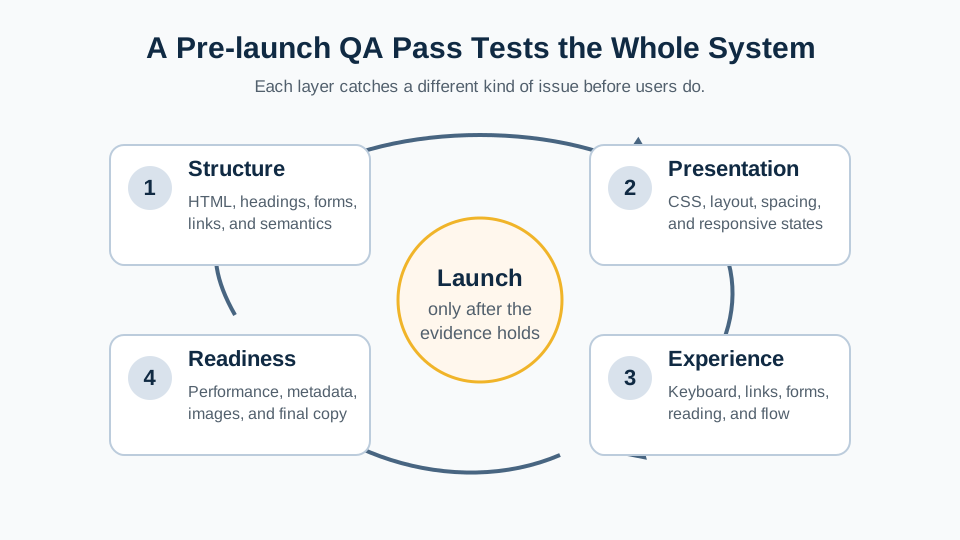
This matters because no single tool can judge the whole site. A validator can find invalid markup. Lighthouse can point out common performance and accessibility risks. Your own manual testing can notice whether the navigation feels clear and whether the content makes sense.
Validate the HTML
HTML validation checks whether your markup follows the rules the browser expects. The most common tool is the W3C Markup Validation Service. You can validate a public URL, upload a file, or paste HTML directly.
When validating a local project, you may need to copy the rendered HTML from the browser or validate the built page after deployment preview. For a beginner or intermediate static site, focus on fixing clear errors first.
HTML issues worth fixing before launch
- unclosed or incorrectly nested elements
- duplicate IDs on the same page
- missing required attributes, such as
alton images - form inputs without labels
- links or buttons used for the wrong purpose
Warnings need judgement. Some are useful. Some are more contextual. Errors are a better first priority because they usually mean the browser is repairing your document behind the scenes.
Check the CSS
CSS validation is less dramatic than HTML validation because invalid CSS is often ignored one declaration at a time. That can make CSS mistakes easy to miss. A typo in a property name, a missing unit, or an unsupported value might simply fail without breaking the whole stylesheet.
.menu-card {
  margin-top: 24;      /* Missing unit */
  colour: #222;        /* UK spelling is invalid in CSS */
  display: grid;
}
In this example, the browser ignores the invalid declarations and keeps the valid ones. That is helpful, but it can also make you wonder why a style "doesn't work." DevTools will usually show invalid or crossed-out declarations in the Styles panel.
Keep perspective: vendor-prefixed or experimental CSS can create validator noise. Use validation as evidence, then decide whether the warning applies to the browsers and features you are actually supporting.
Run a Lighthouse Audit
Lighthouse is built into Chrome DevTools. It checks common issues across performance, accessibility, best practices, and SEO. It is useful because it gives you a broad scan quickly.
For learning projects, Lighthouse is most helpful when you treat it as a set of clues rather than a score to worship. A perfect score is not the goal. A page that loads reasonably, uses meaningful content, supports keyboard navigation, and avoids obvious accessibility failures is much more important.
How to read Lighthouse results
- Start with red items: these usually represent clearer problems.
- Look for repeated themes: oversized images, missing labels, poor contrast.
- Fix what improves real users: not every point is equally important.
- Retest after fixes: confirm the issue changed instead of assuming.
Run Lighthouse against a production-like version when possible. Local development servers, browser extensions, and throttling settings can affect results. If a score looks strange, rerun the audit in an incognito window with extensions disabled.
Manual Browser Testing
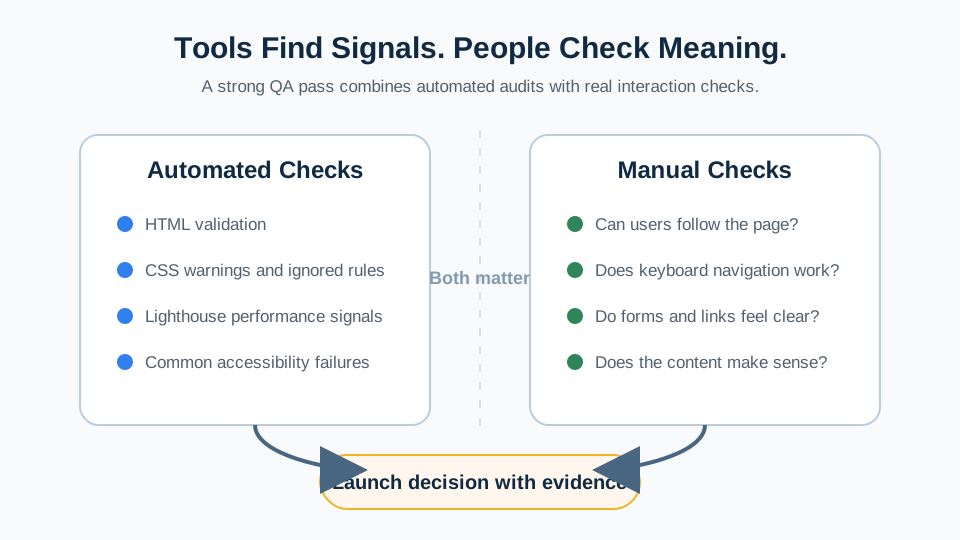
Automated tools are useful, but they do not experience the site like a person. Manual browser testing checks the real path through the page.
For a site like Black Swan Bistro, manual testing should include:
- clicking every navigation link on every page
- checking that the current page is clear in the navigation
- testing mobile, tablet, and desktop widths
- checking that images load and do not distort
- submitting or testing forms safely, if forms exist
- using the keyboard to move through links and controls
When you find an issue, write it down as a symptom first. For example: Menu link wraps awkwardly at 375px is more useful than fix CSS. A clear symptom gives you a better starting point for debugging.
Accessibility and Content Checks
A pre-launch pass should include basic accessibility and content review. This does not replace a full accessibility audit, but it helps catch common blockers before real users hit them.
Accessibility checks
- headings follow a logical order
- images have useful alt text or intentionally empty alt text
- links make sense out of context
- keyboard focus is visible
- text has enough colour contrast
Content checks
- page titles and headings match the page purpose
- spelling and grammar have been reviewed
- placeholder text has been removed
- contact details and links are correct
- metadata is ready for previews and search
These checks also prepare you for the SEO and deployment lessons. Search engines, assistive technologies, and social previews all rely on clear structure and meaningful content. A tidy page is easier for both people and machines to understand.
A Reusable Pre-launch Checklist
Here is a checklist you can adapt for future projects:
Pre-launch QA checklist
- HTML validates without serious errors
- CSS has no obvious invalid declarations or broken selectors
- all navigation links work
- images load, have appropriate alt text, and are not unnecessarily large
- layout works at mobile, tablet, laptop, and wide desktop widths
- keyboard navigation reaches all interactive elements
- focus styles are visible
- forms have labels, useful error states, and safe submission behaviour
- Lighthouse has been reviewed for major performance and accessibility issues
- page titles, meta descriptions, and visible headings are accurate
- placeholder copy, test links, and unused assets have been removed
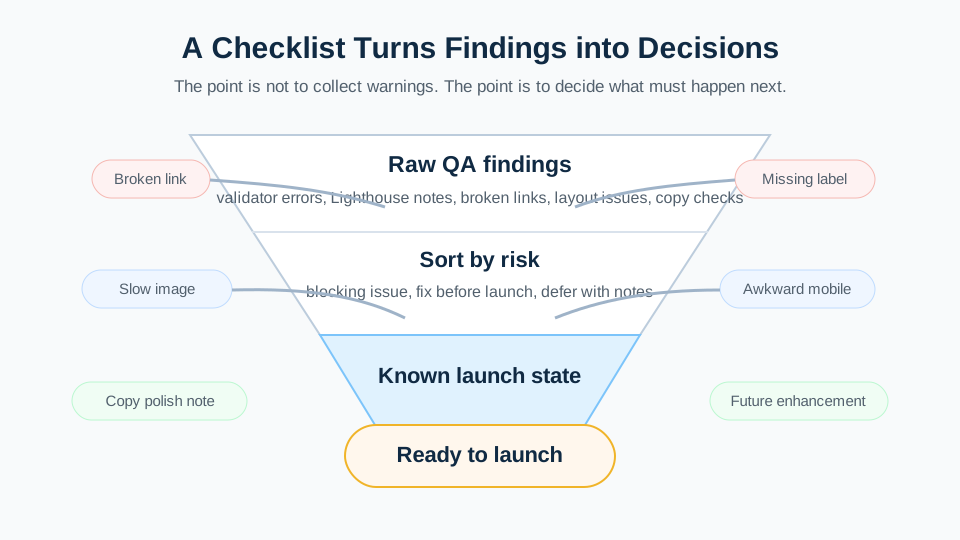
You do not need to fix every non-critical warning before launch. You do need to understand what remains and make a deliberate decision. That is the difference between skipping quality and managing quality.
Checkpoint: Can You Read a QA Result?
Before moving forward, can you answer these?
- Why should validation happen before deployment rather than after a site is already live?
- What is the difference between an automated audit and manual testing?
- Why should you keep a written QA checklist instead of relying on memory?
Check Your Answers
- Pre-launch validation catches structural, accessibility, performance, and content issues before users experience them. It is easier to fix a broken link, invalid HTML, or slow image while the project is still in your working context.
- Automated tools can detect many technical issues quickly, such as invalid HTML, missing labels, or performance warnings. Manual testing checks the real experience: whether navigation feels clear, content makes sense, forms are usable, and layouts hold up across screen sizes.
- A written checklist makes the process repeatable. It prevents skipped steps, gives you evidence of what was checked, and helps you improve the workflow project by project.
How confident are you with this concept?
Still confused | Getting there | Got it | Could explain it to a friend
Guided Practice: Audit One Page
Step 1: Choose one page to audit
Open a page from your Black Swan Bistro project or another small project you have built. Start with the homepage because it usually contains navigation, images, links, headings, and repeated layout sections.
Create a simple note with four headings: Structure, Performance, Accessibility, and Content.
Need a hint?
Step 2: Validate the HTML and CSS
Use the W3C HTML validator to check your page markup. If your project is local, view the page source or copy the rendered HTML into the validator. Then use the CSS validator or browser DevTools to check for invalid CSS declarations.
Record any errors separately from warnings. Fix errors first.
Need a hint?
Step 3: Run Lighthouse
Open Chrome DevTools, go to the Lighthouse panel, and run an audit for Performance, Accessibility, Best Practices, and SEO. Do this in an incognito window or with extensions disabled if the score looks strange.
Pick the top two useful recommendations. Do not chase the score blindly.
Need a hint?
Step 4: Test manually across real conditions
Resize the browser from narrow mobile width to desktop width. Click every navigation link. Use Tab and Shift+Tab to move through interactive elements. Check that focus is visible and the page still makes sense without using a mouse.
Add anything you find to your QA note with a short description and the page where it happened.
Need a hint?
You're on track if you can:
- You tested one real page rather than only reading about testing
- You separated automated validation results from manual experience checks
- You recorded errors, warnings, and judgement calls clearly
- You identified a small set of fixes instead of trying to perfect everything at once
Independent Practice: Build Your Own Pre-launch QA Note
Now try this on your own without hints!
Your Task:
Choose a small multi-section page from your own work, preferably the Black Swan Bistro homepage. Run a pre-launch QA pass and create a short written report with the checks you completed, the issues you found, and the fixes you made or deferred.
Requirements:
- Validate or inspect the HTML structure
- Check CSS behaviour across at least three viewport widths
- Run a Lighthouse audit and choose two useful findings
- Test navigation with mouse and keyboard
- Write a short final checklist you could reuse on another project
Success Criteria:
| Criteria | You've succeeded if... |
|---|---|
| Coverage | The checklist covers structure, links, responsive layout, accessibility, performance, and content review. |
| Evidence | The learner can point to tool results, browser behaviour, or manual test notes rather than vague impressions. |
| Prioritisation | Blocking issues and clear errors are fixed before cosmetic improvements or score-chasing. |
| Repeatability | The final checklist is reusable for future projects, not only the current page. |
Recap
Testing and validation turn "it looks done" into "I have checked the important parts." HTML validation, CSS inspection, Lighthouse audits, manual browser testing, accessibility checks, and content review each catch different kinds of problems.
The strongest workflow is not complicated. Check the structure. Check the styles. Check the experience. Check the launch details. Write down what you found, fix the blockers first, and retest.
From Builder to Launch Thinker
Key Takeaways:
- Testing is not a separate personality trait. It is a repeatable workflow.
- Validation checks whether your HTML and CSS are structurally sound.
- Lighthouse gives useful signals, but scores need judgement and context.
- Manual browser testing catches real experience problems that automated tools miss.
- Accessibility, content, performance, and links all belong in a pre-launch check.
- A written QA checklist turns launch preparation into a habit instead of a panic.
Think & Reflect:
QA Habits
- Which part of the QA process caught something you would usually miss?
- What would make this checklist easy for you to reuse before every launch?
Good Judgement
- Which automated warning was useful, and which one needed more context?
- How would you explain a remaining non-critical issue to a client or teammate?
Recommended Next Steps
Continue Learning
Ready to move forward? Continue with the next tutorial in this series:
Applied JavaScriptRelated Topics
Explore these related tutorials to expand your knowledge: