Modern CSS Layout Extensions
Use intrinsic sizing, fluid functions, flexible Grid, subgrid, :has(), aspect-ratio, logical properties, and stress testing to make layouts more resilient.
Modern CSS Gives Layouts Better Judgment
Flexbox and Grid remain the foundations of most CSS layouts. Modern CSS does not replace them. It gives those tools better ways to respond to real content.
Instead of telling the browser every exact width, height, and breakpoint, you can provide useful limits and let the browser make sensible layout decisions inside those limits.
This lesson extends what you already know about responsive design into more resilient layout work: content-sized elements, fluid values, flexible grids, optional content, media proportions, logical spacing, and stress testing.
- Where have you used a fixed width or height because it seemed easier?
- What kinds of content usually make your layouts break?
- How could CSS constraints give the browser more useful decisions to make?
This lesson extends earlier work on Grid, responsive refinement, and detail selectors. You already know the core tools. Now you will use modern CSS features to make those tools more adaptable.
Learning Objectives
By the end of this lesson, you'll be able to:
- Explain Explain the difference between content-driven and explicitly sized layouts
- Use min-content, max-content, and fit-content() where content should influence size
- Create Create fluid values with min(), max(), and clamp()
- Build responsive Grid layouts with auto-fit and minmax()
- Use subgrid, :has(), aspect-ratio, and logical properties for specific layout problems
- Apply Apply @supports and layout stress testing before relying on modern enhancements
Why This Matters:
Modern CSS is most useful when it helps a layout respond to real content. The goal is not to use every new feature. The goal is to choose the feature that makes the design clearer, more adaptable, and easier to maintain.
Before You Start:
You should be familiar with:
- CSS Grid for Repeated Layouts Review here
- Responsive Refinement for Reusable Components Review here
- Styling Details: Selectors, Pseudo-elements, and Motion Review here
Let Content Influence Size
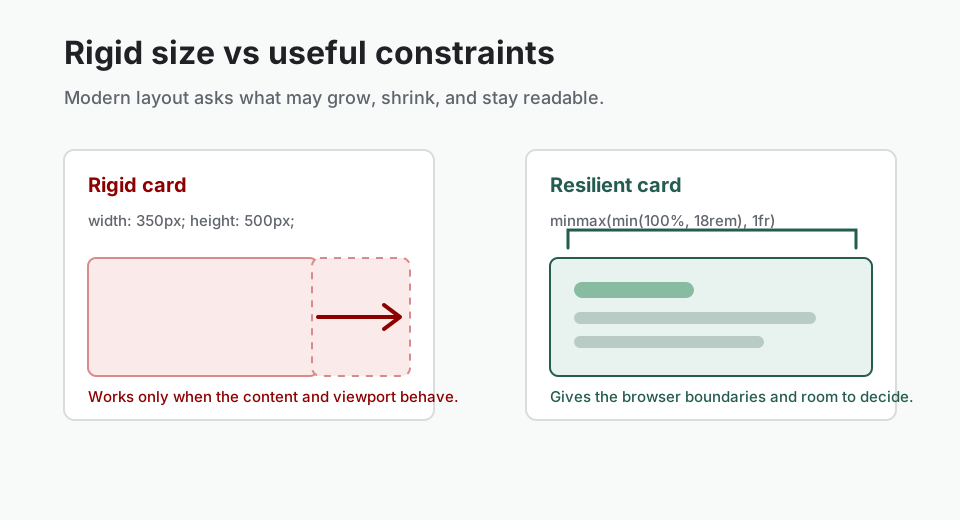
A common beginner habit is to assign fixed widths and heights to everything.
.card {
  width: 350px;
  height: 500px;
}
That may work with one screen size and one carefully chosen piece of content. It is much less reliable when the viewport becomes narrower, a heading is longer, the user increases text size, an image has different proportions, or the content is translated.
Modern CSS encourages us to define constraints rather than force exact dimensions. Instead of saying, "this card must always be exactly 350 pixels wide," we can say, "this card may grow, may shrink, and must remain usable inside the available space."
Use Intrinsic Sizing Deliberately
An element has an intrinsic size when its size is influenced by its own content: an image has natural dimensions, a word has a minimum width before it must wrap, and a heading has a width based on the text it contains.
An extrinsic size is imposed by the surrounding layout or an explicit CSS rule. Most real layouts use both. The useful question is: should the content determine the size, should the container determine the size, or should both contribute?
min-content
min-content asks how narrow an element can become without avoidable overflow. For text, this is usually the width of the longest unbreakable word.
.tag {
  width: min-content;
  padding: 0.35rem 0.65rem;
  white-space: nowrap;
}
max-content
max-content asks how wide the content would be if it did not wrap. It can be useful for short controls, but it can also cause overflow when the content is longer than the available space.
.section-heading > a {
  width: max-content;
}
fit-content()
fit-content() lets an element grow according to its content while respecting a maximum size.
.hero-intro {
  width: fit-content(42rem);
}
For a content-sized category label, use fit-content so the background shape follows the metadata instead of stretching across the whole card.
.card-category {
  width: fit-content;
  margin-bottom: 0.75rem;
  padding: 0.25rem 0.55rem;
  color: var(--colour-accent);
  background: color-mix(in srgb, var(--colour-accent) 12%, white);
  border-radius: 999px;
  font-size: 0.8rem;
  font-weight: 700;
  text-transform: uppercase;
}
Check the intent: width: 100% would be a poor choice for this label because the label is a small piece of metadata. Making it full width gives it visual weight it has not earned.
Create Fluid Values with Boundaries
Responsive CSS is often taught as a series of abrupt changes. That is valid and still useful, but some values can change fluidly rather than jumping from one setting to another.
min()
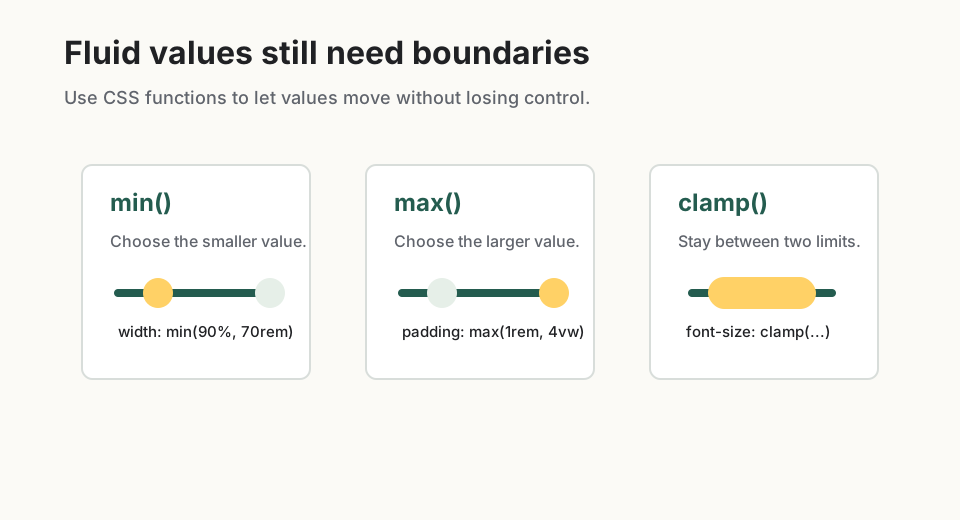
min() chooses the smallest value from a list. The wrapper pattern below leaves breathing room on narrow screens and stops growing once it reaches 72rem.
.wrapper {
  width: min(100% - 2rem, 72rem);
  margin-inline: auto;
}
max()
max() chooses the largest value from a list. Use it when you need to protect a minimum value.
.hero {
  padding-inline: max(1rem, 5vw);
}
clamp()
clamp() accepts a minimum, a preferred value, and a maximum. It is especially useful for type, spacing, and gaps that should scale smoothly within clear boundaries.
.hero h1 {
  max-width: 15ch;
  margin-bottom: 1.25rem;
  font-size: clamp(2.5rem, 7vw, 5.5rem);
  line-height: 0.98;
  text-wrap: balance;
}

.article-section {
  padding-block: clamp(3.5rem, 8vw, 6rem);
}

.card-grid {
  gap: clamp(1rem, 3vw, 2rem);
}
Keep user control in mind. For text, use relative units such as rem in the minimum and maximum values. A preferred value like 1.25rem + 3vw often gives you more control than a plain viewport value.
Checkpoint for Understanding
Pause before the Grid section and check whether the constraint-based thinking is clear.
- What is the difference between a rigid layout and a resilient layout?
- Why does repeat(auto-fit, minmax(min(100%, 18rem), 1fr)) protect a card grid better than repeat(3, 1fr)?
- When is :has() worth using?
Show sample answers
- A rigid layout depends on exact dimensions and carefully chosen content. A resilient layout defines constraints so content can grow, shrink, wrap, or adapt without breaking the design.
- It lets the browser create as many useful columns as will fit, protects each card from becoming too narrow, and avoids overflow when the container is narrower than the preferred minimum.
- Use :has() when the component should respond to a simple content relationship, such as whether a card contains an image or whether a form group contains an invalid input.
How confident are you with this concept?
Still confused | Getting there | Got it | Could explain it to a friend
Build Responsive Grid Without Breakpoint Clutter
A fixed three-column card grid can look fine on a wide screen, but the browser will still try to display all three columns when the space becomes narrow.
.card-grid {
  display: grid;
  grid-template-columns: repeat(3, 1fr);
}
A more flexible approach uses repeat(), auto-fit, and minmax().
.card-grid {
  display: grid;
  grid-template-columns:
    repeat(auto-fit, minmax(min(100%, 18rem), 1fr));
  gap: clamp(1rem, 3vw, 2rem);
}
Read that rule in plain English: create as many columns as will fit; each column wants to be at least 18rem, but it may use 100% when the container is narrower; then let the columns share the remaining space.
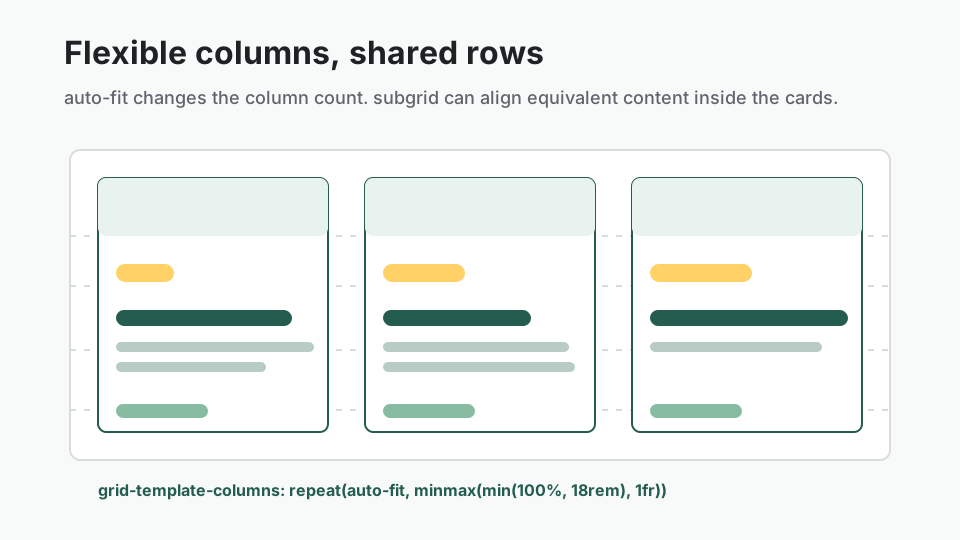
auto-fit adapts the number of columns. minmax() sets the useful range for each column. auto-fit vs auto-fill
Both values create as many tracks as will fit. auto-fit collapses empty tracks so existing items can stretch. auto-fill keeps empty tracks in the grid and reserves space for columns that could exist.
For a card collection where existing items should expand, auto-fit is often the more useful choice.
When Media Queries Still Belong
This technique does not make media queries obsolete. Use a media query when the design itself changes: navigation becomes a menu button, a sidebar moves below the main content, controls change order, or optional information is shown or hidden. Use flexible Grid sizing when the same layout simply needs room to breathe.
Align Nested Content with Subgrid
Cards often contain an image, category, heading, paragraph, and link. Because headings and paragraphs have different lengths, the links may not align across a row.
A subgrid allows a nested grid to use track sizing inherited from its parent grid. This helps equivalent parts of neighbouring cards line up when that alignment is visible and meaningful.
.card {
  display: grid;
  grid-template-rows: auto auto 1fr auto;
}

@supports (grid-template-rows: subgrid) {
  .card {
    grid-row: span 5;
    grid-template-rows: subgrid;
  }
}
Subgrid works well for card collections, forms with aligned labels and controls, pricing tables, definition lists, and nested layouts that need shared tracks. It is unnecessary when each component should size itself independently or a simple Flexbox layout already solves the problem.
Style a Parent with :has()
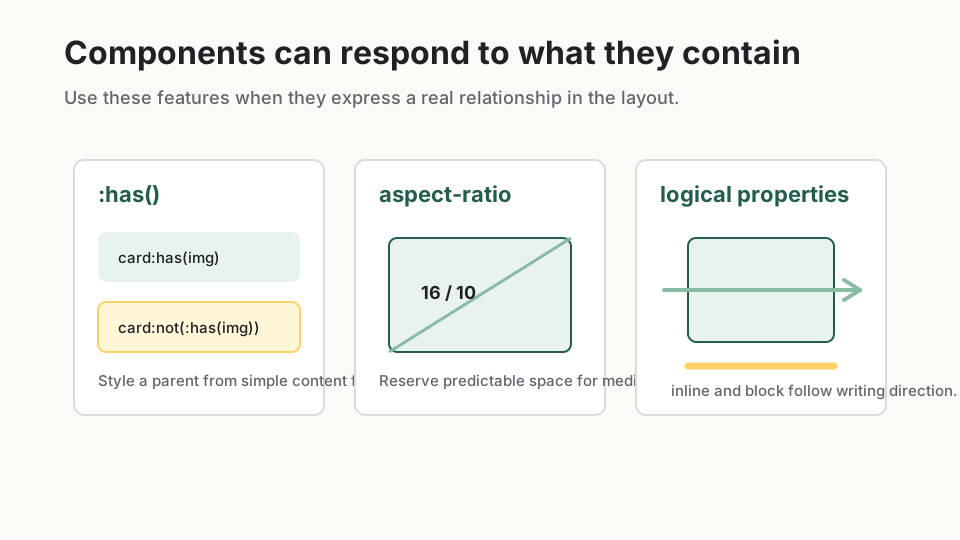
The :has() pseudo-class lets CSS select an element based on what it contains or what follows it.
.card:has(img) {
  border-color: transparent;
}

.card:not(:has(img)) {
  padding-top: 2rem;
  background: var(--colour-surface-alt);
}
That makes optional content easier to handle. A card without an image can look intentional instead of merely broken or empty.
.section-heading:has(> a) {
  display: flex;
  align-items: end;
  justify-content: space-between;
}

.form-group:has(input:user-invalid) {
  padding: 1rem;
  border-left: 0.25rem solid firebrick;
}
Keep :has() selectors understandable. Prefer simple relationships such as .card:has(img), .form-group:has(input:invalid), or nav:has(.current).
Preserve Media Proportions with aspect-ratio
Images and media often need predictable proportions. The aspect-ratio property makes that intention explicit.
.card img {
  width: 100%;
  aspect-ratio: 16 / 10;
  object-fit: cover;
}
object-fit: cover fills the box while preserving the image's own proportions, but some parts of the image may be cropped. That can be acceptable for decorative photography. For diagrams, screenshots, charts, instructional images, or images containing text, use object-fit: contain or allow the natural dimensions so important information remains visible.
.tutorial-diagram {
  width: 100%;
  height: auto;
  object-fit: contain;
}
Use Logical Properties for Adaptable Spacing
Traditional CSS properties are based on physical directions: margin-left, padding-right, and border-bottom. Logical properties describe directions according to the document's writing mode.
.wrapper {
  margin-inline: auto;
}

.hero {
  padding-block: 6rem;
}

.callout {
  border-inline-start: 0.3rem solid var(--colour-accent);
  padding-inline-start: 1rem;
}
Useful logical properties include margin-inline, margin-block, padding-inline, padding-block, border-inline-start, inline-size, and block-size. They help layout rules follow content direction instead of assuming every interface begins on the left and moves top to bottom.
Use @supports for Enhancements
When a feature may not be available in every browser you support, use @supports to apply it conditionally. Start with a usable baseline, then add the improvement for browsers that support it.
.card {
  display: grid;
  grid-template-rows: auto auto 1fr auto;
}

@supports (grid-template-rows: subgrid) {
  .card {
    grid-row: span 5;
    grid-template-rows: subgrid;
  }
}

@supports selector(.card:has(img)) {
  .card:not(:has(img)) {
    background: var(--colour-surface-alt);
  }
}
Not every visual difference requires a custom fallback. Ask whether the content is still accessible, the component is still usable, and the layout remains understandable. A card link being slightly out of alignment may be acceptable. A form becoming unusable is not.
Stress Test the Layout
A layout is not finished when it works with the three pieces of content you chose for the screenshot. Real content includes long names, unbroken URLs, missing images, tall images, unexpected labels, translated text, validation messages, empty states, and user-generated content.
- Use a very long heading: check whether the card expands, the link remains reachable, and the layout still aligns reasonably.
- Add a long unbroken string: protect Grid and Flex items with
min-width: 0and text withoverflow-wrap: anywhere. - Remove an image: make sure optional media does not leave an awkward hole.
- Enlarge browser text to 200%: avoid fixed heights on text-heavy components and check that controls remain visible.
- Narrow the container: test the component in a full-width section, sidebar, two-column layout, modal, and centred column.
- Test different item counts: one, two, three, five, and eight cards may reveal whether
auto-fitstretching is desirable.
.card {
  min-width: 0;
}

.card p,
.card a {
  overflow-wrap: anywhere;
}
Watch for false confidence: a layout that survives the demo content has passed the first test only. The real test is awkward content, missing optional pieces, zoom, and reuse in a narrower container.
Guided Practice
Turn a rigid article card section into a resilient layout
Use the Coastal Notes practice page from the prompt, or create a similar header, hero, and card-grid section with at least three articles.
Step 1: Create the practice page
Create a folder called modern-layout-extensions with index.html and styles.css. Build a simple article-card section with a header, hero, and at least three cards.
Need a hint?
Step 2: Replace rigid dimensions with constraints
Look for fixed widths, fixed heights, and card-specific breakpoints. Replace them with min(), max-width, fit-content, minmax(), or natural sizing where appropriate.
Need a hint?
Step 3: Make spacing, type, and columns fluid
Use clamp() for a heading size, section spacing, or grid gap. Then replace fixed grid columns with repeat(auto-fit, minmax(min(100%, 18rem), 1fr)).
Need a hint?
Step 4: Add content-aware and media-aware refinements
Use aspect-ratio for card images, logical properties for spacing, and a simple :has() selector for cards with optional images. Add @supports if you try subgrid as an enhancement.
Need a hint?
Step 5: Stress test the result
Add long headings, long URLs, missing images, fewer cards, more cards, and 200% zoom. Fix actual failures rather than tuning only for the original demo content.
Need a hint?
You are on track if you can:
- You can explain which values are content-driven and which are container-driven
- Your card grid adapts without card-specific media queries
- Your fluid values have clear minimum and maximum limits
- Your media keeps its intended proportions without distorting important content
- Your layout survives long text, missing images, narrow containers, and 200% zoom
Independent Practice
Independent Practice: Build resilient feature cards
Create a reusable feature-card section containing at least four cards.
Your Task:
Each card may contain an optional image, category, heading, description, one or more links, and an optional badge. Keep the focus on layout resilience rather than building a full website.
Requirements:
- Use a responsive Grid without card-specific media queries
- Use minmax() with either auto-fit or auto-fill
- Use clamp() for at least one spacing or typography value
- Use aspect-ratio for images
- Use :has() to respond to optional content
- Use at least three logical properties
- Avoid fixed heights on text containers
- Prevent long text or URLs from causing horizontal overflow
- Remain usable when an image is removed
- Remain usable at 200% browser zoom
Stretch Goals (Optional):
- Use subgrid to align equivalent content across cards
- Provide a sensible @supports fallback for the subgrid enhancement
- Constrain stretched cards with a maximum track size and justify-content when small item counts look too wide
Success Criteria:
| Criteria | You've succeeded if... |
|---|---|
| Resilient constraints | The solution avoids fixed text-container heights and uses meaningful minimums, maximums, or intrinsic sizing. |
| Modern layout choices | The learner uses minmax(), clamp(), aspect-ratio, logical properties, and :has() only where each feature solves a visible layout need. |
| Progressive enhancement | Enhancements such as subgrid are guarded with @supports when fallback behaviour matters. |
| Stress testing | The component remains usable with awkward content, missing optional elements, narrow containers, and enlarged text. |
Recap
Modern CSS layout is less about controlling every pixel and more about defining useful relationships. Use intrinsic sizing when content should influence dimensions, fluid functions when values should scale within limits, flexible Grid when repeated items should fill available space, and @supports when an enhancement needs conditional application.
Most importantly, test layouts with content that was not selected to make the design look good. A resilient layout should survive long headings, missing images, narrow containers, enlarged text, and content you did not personally write.
Lesson Complete: You Can Extend Modern CSS Layouts
Key Takeaways:
- Modern CSS layout is about defining useful relationships, not controlling every pixel.
- Intrinsic sizing lets content influence dimensions when that improves the component.
- min(), max(), and clamp() help values scale while staying inside sensible limits.
- auto-fit, minmax(), and min(100%, ...) create flexible grids with fewer breakpoint rules.
- Subgrid helps when nested content needs to align with shared parent tracks.
- :has() is useful when a component should respond to simple facts about its contents.
- aspect-ratio protects media proportions, but instructional images should not be cropped carelessly.
- Logical properties make spacing and sizing follow the writing direction instead of fixed screen sides.
- Stress testing reveals whether a layout is genuinely resilient.
Learning Objectives Review:
Look back at what you set out to learn. Can you now:
- Explain content-driven and explicitly sized layout decisions Check!
- Use intrinsic sizing keywords and functions responsibly Got it!
- Create fluid type, spacing, and layout values with min(), max(), and clamp() Can explain it!
- Build responsive Grid layouts with auto-fit, minmax(), and fewer breakpoints Could teach this!
- Use subgrid, :has(), aspect-ratio, logical properties, and @supports where they improve a real layout Check!
- Stress test components with awkward content before calling them finished Got it!
If you can confidently answer "yes" to most of these, you're ready to move on!
Think & Reflect:
Constraints
- Which parts of your layout should be allowed to grow or shrink?
- Where did a fixed width or height create unnecessary fragility?
Testing
- Which stress test revealed the most about your component?
- What awkward content would be realistic for the kind of site you are building?
Looking Ahead:
Recommended Next Steps
Continue Learning
Ready to move forward? Continue with the next tutorial in this series:
BSB Part 4B: Polish and RefineRelated Topics
Explore these related tutorials to expand your knowledge:
Additional Resources
Deepen your understanding with these helpful resources:
- MDN: CSS values and units - Background on CSS units and values before using fluid functions such as min(), max(), and clamp().
- MDN: CSS Grid layout - Reference for Grid concepts including repeat(), minmax(), auto-fit, auto-fill, and subgrid.
- web.dev: The CSS :has() selector - Practical examples of styling elements based on what they contain with the relational :has() selector.