Multi-page Structure
Organise a website with multiple linked pages, shared navigation, and consistent styles.
A Website Is More Than One Good Page
A one-page site can hide a lot of organisational problems. Once you add a menu page, about page, and contact page, every small inconsistency becomes easier to notice.
The navigation needs to point to the right places. The header and footer should feel shared. The CSS should have a home. Page-specific styling should not leak into every file.
This lesson helps you move from one good page to a small website system that can grow without becoming a folder full of guesses.
- What changes when a homepage becomes part of a larger site?
- Which parts of a site should stay the same from page to page?
- Why do broken links become easier to create when folders multiply?
This lesson prepares you for Black Swan Bistro Part 4, where the bistro homepage expands into a menu page, about page, and contact page.
Learning Objectives
By the end of this lesson, you'll be able to:
- Plan the pages and shared structure of a small website
- Organise HTML, CSS, and assets into a predictable file structure
- Build shared navigation that works across multiple pages
- Separate site-wide CSS from page-specific CSS
- Test links and paths before moving into a larger project build
Why This Matters:
Multi-page structure is a maintainability skill. It helps learners move from building isolated pages to managing a small website where navigation, styles, and content relationships all need to stay consistent.
Before You Start:
You should be familiar with:
- Responsive Refinement for Reusable Components Review here
- Building Reusable Components Review here
Why Multi-page Structure Matters
A single page can be built from top to bottom. A multi-page site needs a plan. Each page has its own purpose, but the pages still need to feel like one website. That means shared navigation, shared visual patterns, shared assets, and clear links between pages.
This lesson stays in plain HTML and CSS. You are not creating templates or using a framework. You are learning the structure underneath those tools: how to organise pages, repeat shared patterns carefully, and keep paths understandable.
Start with a Small Site Map
Before creating files, decide what pages the site needs and how people will move between them. For a small business or restaurant site, a simple map is usually enough.
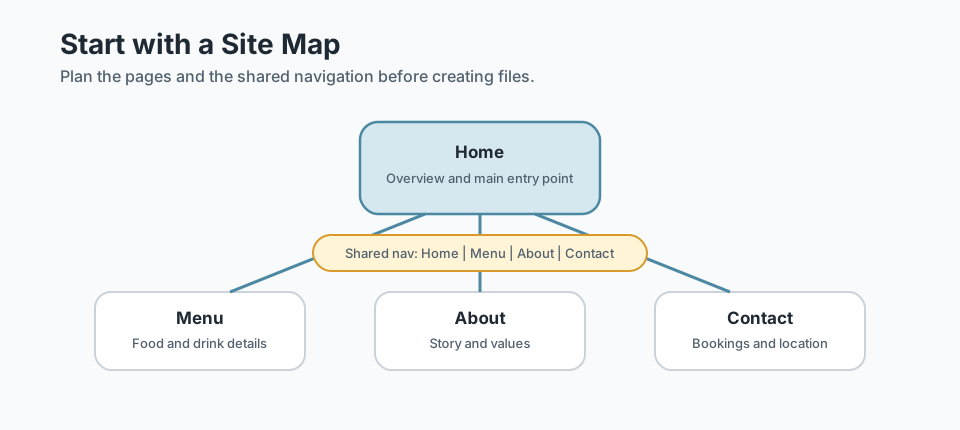
For Black Swan Bistro, the starter multi-page structure might be:
- Home: overview, featured dishes, booking prompt
- Menu: full food and drink sections
- About: story, values, local produce
- Contact: booking information, address, opening hours
Checkpoint for Understanding
Check that the shared-site mental model is clear before planning files.
- What is the main difference between shared CSS and page-specific CSS?
- Why should navigation be planned before creating several pages?
- Predict what happens if each page has its own separate header CSS.
Show sample answers
- Shared CSS supports patterns used across multiple pages, such as header, footer, buttons, containers, and cards. Page-specific CSS supports layout or content that belongs to one page only.
- Navigation becomes the map of the site. If it is inconsistent or incomplete, users can get lost and every page becomes harder to maintain.
- The headers will likely drift apart over time. A small change has to be repeated in several places, which increases mistakes and inconsistency.
How confident are you with this concept?
Still confused | Getting there | Got it | Could explain it to a friend
Plan the File Structure
For a beginner-friendly static site, keep the main HTML pages beside each other. Put shared CSS and image assets into clear folders.
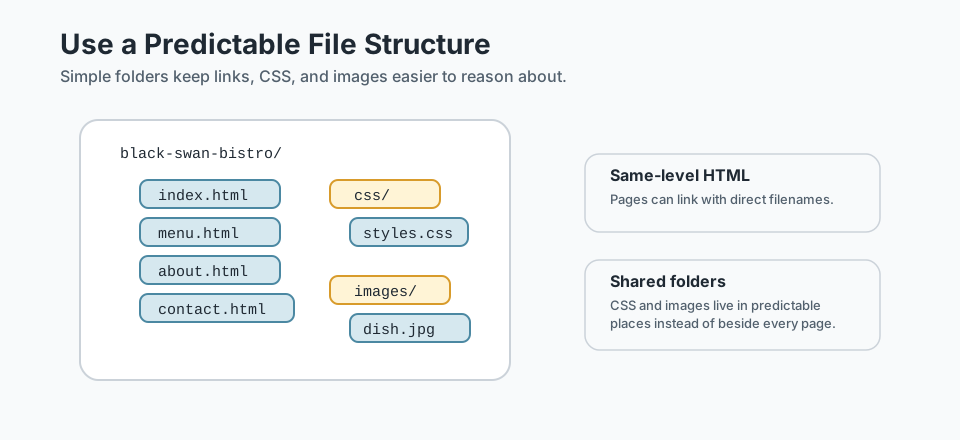
black-swan-bistro/
  index.html
  menu.html
  about.html
  contact.html
  css/
    style.css
  images/
    dining-room.jpg
    featured-dish.jpg
    bistro-front.jpg
This structure is intentionally simple. Every HTML page can reach the shared CSS file with the same path: css/style.css. Every page can link to the other main pages with direct filenames like menu.html.
Build Shared Navigation
Navigation is the most visible shared structure. Every main page should include the same set of important links so visitors can move around without thinking about where they are.
<header class="site-header">
  <div class="container site-header__inner">
    <a class="site-logo" href="index.html">Black Swan Bistro</a>

    <nav class="site-nav" aria-label="Main navigation">
      <ul class="site-nav__list">
        <li><a class="site-nav__link" href="index.html">Home</a></li>
        <li><a class="site-nav__link" href="menu.html">Menu</a></li>
        <li><a class="site-nav__link" href="about.html">About</a></li>
        <li><a class="site-nav__link" href="contact.html">Contact</a></li>
      </ul>
    </nav>
  </div>
</header>
On the current page, you can add a small active state to help orientation:
<a class="site-nav__link is-active" href="menu.html" aria-current="page">
  Menu
</a>
The key idea is consistency. In plain HTML, you will copy this shared navigation into each page. That is not failure. It is controlled repetition until you later learn tools that can generate shared templates.
Keep Shared Styles Global
Your shared stylesheet should contain the patterns that belong to the whole site: colour tokens, type rules, layout helpers, buttons, cards, navigation, and footer styles.
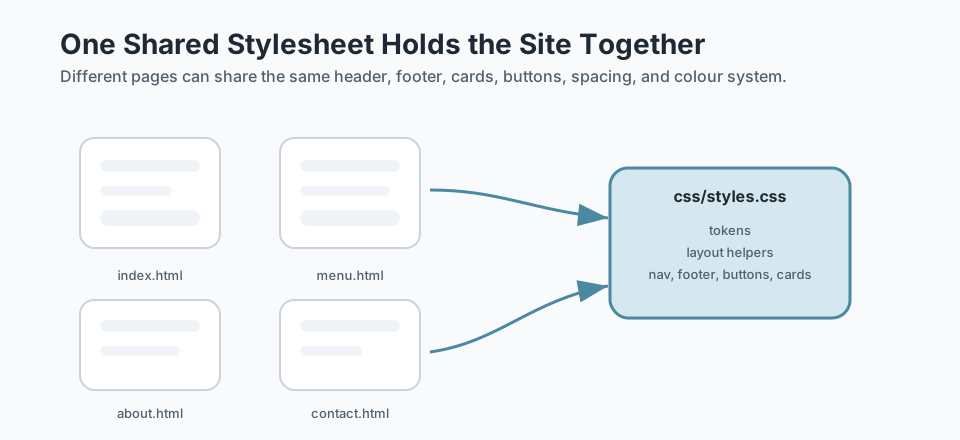
/* Foundations */
:root {
  --color-cream: #f7efe2;
  --color-ink: #1f1b18;
  --color-red: #8f2f23;
}

body {
  margin: 0;
  font-family: Georgia, serif;
  background: var(--color-cream);
  color: var(--color-ink);
}

/* Shared layout */
.container {
  width: min(1100px, 92%);
  margin-inline: auto;
}

.section {
  padding-block: 3rem;
}

/* Shared components */
.site-header,
.site-footer,
.button,
.menu-card {
  /* shared component styles live here */
}
Limit Page-specific Styles
Some styles only belong to one page. That is okay, but keep them clearly labelled and limited. If a style starts appearing on two or three pages, it may need to move into the shared component area.
/* Page: Menu */
.menu-category {
  margin-block: 2rem;
}

.menu-category__title {
  border-bottom: 2px solid var(--color-red);
  padding-bottom: 0.5rem;
}
The page-specific rule here supports a menu page section. It does not change the global header, footer, or button styles. That boundary helps future you understand what each rule is responsible for.
Check Links and Paths
Most multi-page beginner bugs are path bugs. The browser is not being dramatic; it is simply looking in the place you told it to look.
href="menu.html"links to a file beside the current page.href="css/style.css"links to a file inside the css folder.src="images/dining-room.jpg"links to an image inside the images folder.href="../index.html"means go up one folder, then find index.html.
Small habit, big payoff: after adding a new page, click every navigation link from that page. Then check that the CSS and images load. Do not wait until the whole site is finished.
Multi-page Consistency Checklist
Before moving into a project build, check the structure:
- Every page has the same main navigation links.
- The current page has a clear active navigation state.
- Every page links to the same shared stylesheet.
- Header and footer structure stays consistent.
- Page titles and main headings are unique.
- Image and CSS paths are tested from each page.
- Shared styles are not duplicated in several page-specific places.
Guided Practice
Plan and connect a small multi-page site
Build the structure before worrying about final page content.
Step 1: Sketch the pages and shared parts
Choose a small site with three or four pages. Write the page names first, then list the parts that should appear on every page, such as header, navigation, footer, and shared button styles.
Need a hint?
Step 2: Create a simple folder plan
Plan the files before writing page content. Keep HTML files at the same level while shared CSS lives in one predictable folder.
Need a hint?
Step 3: Copy shared structure carefully
Create the same header and footer structure on each page. Update only the page-specific title, main content, and active navigation state.
Need a hint?
Step 4: Test links and shared styles
Open each page in the browser. Click every nav link, check that the CSS loads, and confirm the header/footer still look consistent.
Need a hint?
You are on track if you can:
- You can describe which parts of the site are shared across pages
- Your file structure keeps shared CSS and assets in predictable places
- Every page can link to every other main page
- Your shared header, footer, and basic styles stay consistent across pages
Independent Practice
Independent Practice: Create a multi-page structure plan
Apply the structure process to a small site idea of your own.
Your Task:
Choose a small website idea with three or four pages. Create a site map, a file structure, and a shared navigation snippet. You do not need to write full page content.
Keep the task focused on structure, links, and shared styles.
Requirements:
- Name at least three pages and explain the purpose of each
- Plan a file structure with HTML pages, a CSS folder, and an assets or images folder
- Write a shared navigation snippet that links the pages together
- Identify which styles belong in shared CSS
- Identify at least one page-specific style that should stay limited
Stretch Goals (Optional):
- Add an active navigation state with aria-current="page"
- Write a quick link-testing checklist for your site
Success Criteria:
| Criteria | You've succeeded if... |
|---|---|
| Clear site map | The learner identifies the main pages and how users move between them. |
| Predictable files | HTML, CSS, and assets are organised so paths are easy to reason about. |
| Shared structure | Header, navigation, footer, and shared CSS patterns remain consistent across pages. |
| Link testing | The learner tests navigation and can explain how to fix a broken relative path. |
Recap
Multi-page structure is about consistency and orientation. Each page has its own job, but the site needs shared navigation, shared styles, predictable files, and tested links. If you plan those pieces before adding lots of content, the site feels calmer to build and easier to maintain.
This is the final standalone bridge before Black Swan Bistro Part 4. You now have the concepts needed to expand a one-page bistro site into a small linked website.
Lesson Complete: You Can Structure a Multi-page Site
Key Takeaways:
- A multi-page site needs a simple map before it needs more HTML.
- Shared navigation, footer, and CSS patterns keep pages feeling like one website.
- Global styles should support the whole site; page-specific styles should stay limited and intentional.
- Relative links and asset paths become more important as soon as a site has more than one page.
- Consistent structure now makes Black Swan Bistro Part 4 much easier to build.
Learning Objectives Review:
Look back at what you set out to learn. Can you now:
- Plan a small multi-page website with clear page relationships Check!
- Create a beginner-friendly file structure for several linked HTML pages Got it!
- Reuse navigation, footer, and shared CSS across pages Can explain it!
- Separate global styles from page-specific styles Could teach this!
- Check links, paths, and consistency before expanding a project Check!
If you can confidently answer "yes" to most of these, you're ready to move on!
Think & Reflect:
Website Structure
- Which pages in your next project need to share the same navigation?
- Which content belongs on a separate page instead of being squeezed into the homepage?
Consistency and Links
- What shared structure would become annoying to update if every page handled it differently?
- Which file paths will you test before calling the site ready?
Looking Ahead:
Recommended Next Steps
Continue Learning
Ready to move forward? Continue with the next tutorial in this series:
Black Swan Bistro — Part 4 (Multi-page Site)Related Topics
Explore these related tutorials to expand your knowledge:
Additional Resources
Deepen your understanding with these helpful resources:
- MDN: Creating hyperlinks - A clear guide to links, URLs, and connecting pages together.
- MDN: Dealing with files - Useful for understanding folders, file names, and where assets should live.
- MDN: Document and website structure - Helpful background for planning page regions and shared site structure.